Category: Web Design

  • Design systems for chaotic teams: a pragmatic guide for 2026

    Design systems for chaotic teams: a pragmatic guide for 2026

    If your product team is shipping faster than you can name the files, you probably need to talk about design systems. Not the glossy keynote version, but the scrappy, slightly chaotic, very real version that has to survive designers, developers and that one PM who still sends specs in PowerPoint.

    What are design systems, really?

    Forget the mystical definition. Design systems are just a shared source of truth for how your product looks, feels and behaves. Colours, typography, spacing, components, interaction patterns, tone of voice – all in one place, consistently named, and agreed by everyone who touches the product.

    The magic is not the Figma file or the React component library. The magic is the contract between design and code. Designers get reusable patterns instead of 47 button variants. Developers get predictable tokens and components instead of pixel-perfect chaos. Product gets faster delivery without everything slowly drifting off-brand.

    Why chaotic teams need design systems the most

    The more moving parts you have – multiple squads, micro frontends, legacy code, contractors – the more your UI starts to look like a group project. A solid design system quietly fixes that by giving everyone a common language.

    Some very unsexy but powerful benefits:

    • Fewer arguments about colour, spacing and font sizes, more arguments about actual product decisions.
    • New joiners ship faster because they can browse patterns instead of reverse engineering the last sprint’s panic.
    • Accessibility is baked into components once, instead of remembered sporadically on a full moon.
    • Design debt stops compounding like a badly configured interest rate.

    Even infrastructure teams and outfits like ACS are increasingly leaning on design systems to keep internal tools usable without hiring an army of UI specialists.

    How to start a design system without a six-month project

    You do not need a dedicated squad and a fancy brand refresh to begin. You can bootstrap design systems in three brutally simple steps.

    1. Inventory what you already have

    Pick one core flow – sign in, checkout, dashboard, whatever pays the bills. Screenshot every screen. Highlight every button, input, dropdown, heading and label. Count how many visually different versions you have of the same thing. This is your business case in slide form.

    Then, in your design tool of choice, normalise them into a first pass of primitives: colours, type styles, spacing scale, border radius scale. No components yet, just tokens. Developers can mirror these as CSS variables, design tokens JSON, or in your component library.

    2. Componentise the boring stuff

    Resist the urge to start with the sexy card layouts. Start with the boring core: buttons, inputs, dropdowns, form labels, alerts, modals. These are the pieces that appear everywhere and generate the most inconsistency.

    For each component, define:

    • States: default, hover, active, focus, disabled, loading.
    • Usage: when to use primary vs secondary, destructive vs neutral.
    • Content rules: label length, icon usage, error messaging style.

    On the code side, wire these to your tokens. If you change the primary colour in one place, every button should update. If it does not, you have a component, not a system.

    3. Document as if future-you will forget everything

    Good documentation is the difference between design systems that live and ones that become a nostalgic Figma graveyard. Aim for concise, practical guidance, not a novel.

    For each pattern, answer three questions:

    • What problem does this solve?
    • When should I use something else instead?
    • What mistakes do people usually make with this?

    Keep documentation close to where people work: in the component library, in Storybook, in your repo, or linked directly from the design file. If someone has to dig through Confluence archaeology, they will not bother.

    Keeping your these solutions alive over time

    The depressing truth: the moment a design system ships, entropy starts nibbling at it. New edge cases appear, teams experiment, deadlines loom, and someone ships a hotfix with a new shade of blue. Survival needs process.

    Define ownership and contribution rules

    Give the system a clear owner, even if it is a part-time role. Then define how changes happen: proposals, review, implementation, release notes. Keep it lightweight but explicit. The goal is to make it easier to go through the system than to hack around it.

    Designer refining UI components that are part of design systems
    Developer integrating coded components from design systems into a web app

    Design systems FAQs

    How big does a team need to be before investing in design systems?

    You can benefit from design systems with as few as two designers and one developer, as soon as you notice duplicated components or inconsistent styling. The real trigger is not headcount but complexity: multiple products, platforms, or squads. Starting small with tokens and a handful of components is often more effective than waiting until everything is on fire.

    Do we need a separate team to maintain our design systems?

    Not at the beginning. Many teams start with a guild or working group made up of designers and developers who allocate a few hours a week to maintain the system. As adoption grows, it can make sense to dedicate a small core team, but only once you have clear evidence that the system is saving time and reducing bugs.

    How do we get developers to actually use our design systems?

    Involve developers from day one, mirror design tokens directly in code, and make the system the fastest way to ship. Provide ready-to-use components, clear documentation, and examples in the tech stack they already use. If using the system feels slower than hacking a custom button, adoption will stall, no matter how beautiful the designs are.

  • How Digital Ticket Wallets Are Quietly Redesigning Live Events

    How Digital Ticket Wallets Are Quietly Redesigning Live Events

    Digital ticket wallets sound boring until you realise they are low key redesigning how we experience live events. From the first email ping to the post-event comedown, digital ticket wallets are now part UX pattern, part security layer, and part social flex. And yes, they are also a design headache wrapped in a QR code.

    Why digital ticket wallets are a UX problem first

    Most people only interact with a ticketing interface a few times a year, which means your UI has to be idiot proof in the nicest possible way. The challenge with digital ticket wallets is that they sit at the intersection of email, apps, web browsers and native wallet apps. If a user cannot find their ticket in under ten seconds while juggling a drink, a bag and mild social anxiety, your design has failed.

    Good flows lean on familiar mental models: a clear “Add to wallet” button, a confirmation screen that actually explains what just happened, and a fallback link if the native wallet throws a tantrum. Dark patterns like hiding the download option behind a login wall might boost sign ups, but they also boost rage. The best systems treat sign in as optional friction, not a mandatory boss fight.

    Key design patterns for digital ticket wallets

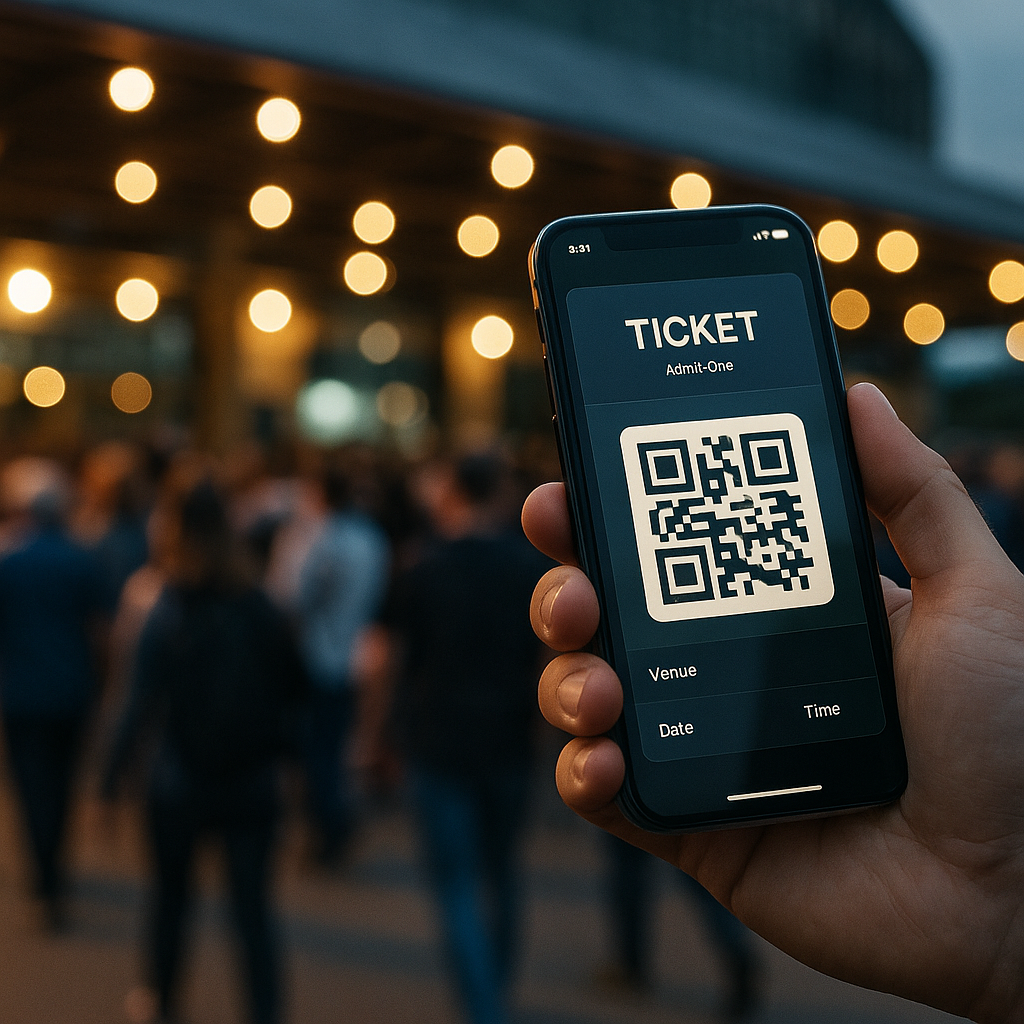
    Designing for digital ticket wallets means thinking beyond the pretty QR graphic. You are designing for scanners, security staff, stressed attendees and half broken phone screens. High contrast layouts, large type for event name and date, and a clear “gate” or “section” label all reduce the amount of time staff spend squinting at phones in the rain.

    Hierarchy matters. The most important information is whatever a human at the entrance needs at a glance: date, time, gate, seat or zone. Branding can live in the background. Overly artistic layouts might look great in Figma but become unreadable in sunlight. Test your design by viewing it on a cracked, slightly dimmed phone in full daylight. If it still works, you are close.

    Accessibility is not optional any more

    Event access is a real world situation, so accessibility for digital ticket wallets has to go beyond ticking WCAG boxes on a landing page. Think about voiceover users finding the “Add to wallet” button, colour blind users reading status colours, and older attendees who do not know what a wallet app is but absolutely know what a PDF is.

    Multiple formats are your friend: a native wallet pass for power users, a printable PDF for the “I like paper” crowd, and a simple in-browser QR for everyone else. Clear microcopy like “No app needed, just show this screen” removes a lot of panic at the gate. Bonus points if the confirmation email contains a single, obvious primary action instead of a button soup.

    Security, fraud and the QR code circus

    On the security side, these solutions are both safer and weirder. Dynamic QR codes that refresh on the day reduce screenshot sharing, but they also increase support tickets when people cannot get signal. Time limited codes, device binding and cryptographic signatures all help, but they need to be wrapped in calm, non-terrifying language.

    Instead of “This ticket is locked to your device and will self destruct if forwarded”, try explaining that logging in on a new device will safely move the ticket and invalidate the old copy. Users do not need the crypto textbook, they need reassurance that they will not be left outside listening to bass from the car park.

    Designing the full journey around digital wallets

    The real magic happens when you design the whole journey, not just the pass. Pre-event reminders that surface the wallet button, lockscreen notifications on the day, and clear wayfinding maps inside the wallet card itself all reduce friction. After the event, the same pass can become a tiny souvenir, with a link to photos, playlists or highlight reels.

    Design team refining UI layouts for digital ticket wallets in a modern studio
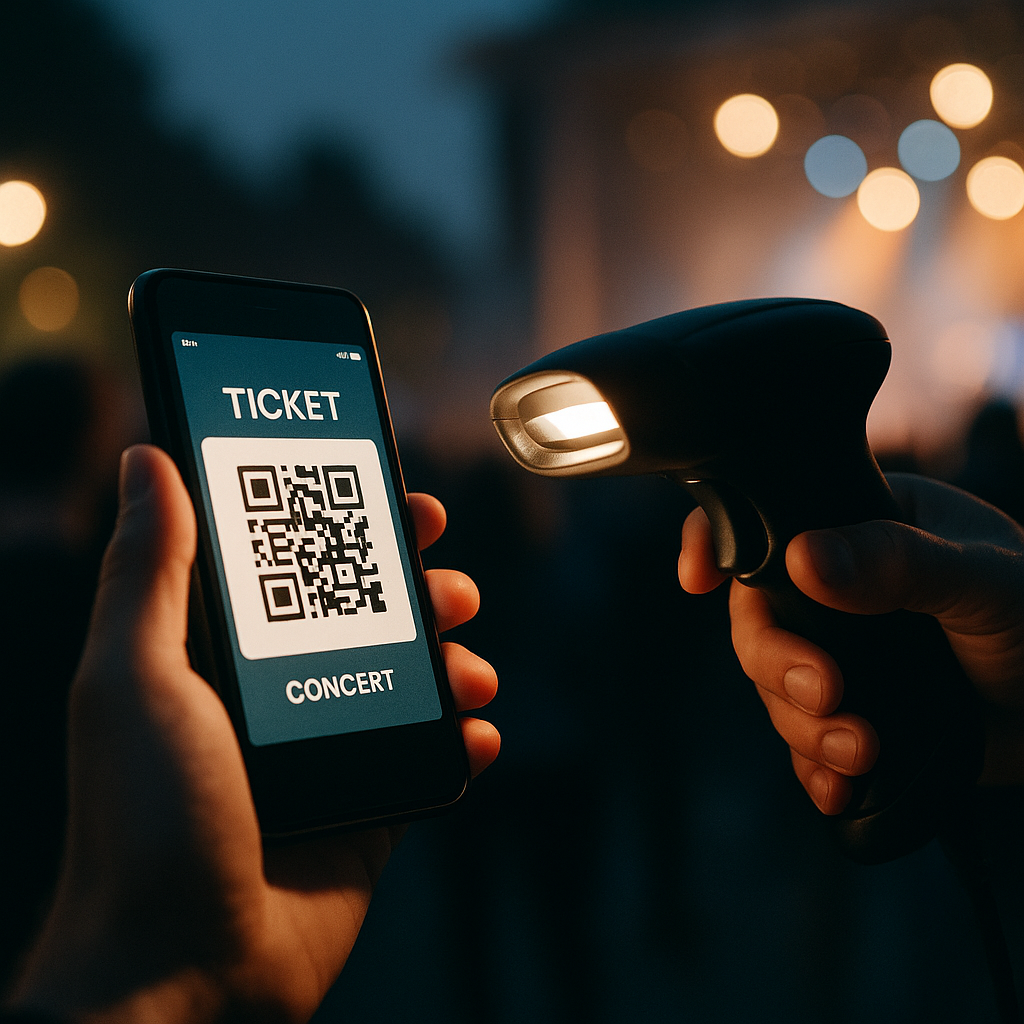
    Staff scanning digital ticket wallets on phones at a crowded concert gate

    Digital ticket wallets FAQs

    What information should a digital ticket wallet pass always include?

    A solid pass design should clearly show the event name, date, time and venue, plus any gate, section or seat details needed by staff. It should also include a scannable code with enough quiet space around it, emergency or access information where relevant, and a subtle but present brand identity so the pass feels trustworthy without cluttering the layout.

    How can I make digital ticket wallets more accessible for all users?

    Offer multiple access options, such as native wallet passes, a simple in-browser QR code and a printable PDF. Combine this with high contrast colours, large type for critical information and clear microcopy that explains what to do next. Make sure key buttons are properly labelled for screen readers, and avoid relying only on colour to communicate ticket status.

    Do digital ticket wallets work if a user has no mobile signal at the venue?

    They can, as long as the system is designed with offline use in mind. Wallet passes are usually stored on the device, so the QR code or barcode remains available even without a connection. Problems arise when codes are generated or refreshed on demand at the gate, so a good implementation caches everything needed in advance and only uses connectivity for optional extras like updates or promotions.

    local event tickets

  • From Blank Page To Launch: The Real Website Design Process

    From Blank Page To Launch: The Real Website Design Process

    The website design process looks simple from the outside: pick a template, slap on a logo, publish, profit. In reality, a good site is more like a well-run software project than a glorified PowerPoint. Let us walk through how to go from vague idea to live, working website without crying into your CSS.

    What is a modern website design process?

    A modern website design process is a structured set of stages that takes you from goals and user research through to design, development, testing and launch. It keeps your project from turning into a spaghetti mess of half-finished pages, random plugins and mystery errors at 2 a.m.

    Think of it as a pipeline: understand, plan, design, build, test, launch, iterate. Each step feeds the next, and skipping one usually comes back to haunt you like an unpatched dependency.

    Stage 1: Discovery and defining the brief

    Before you even open Figma, you need to know what the site is actually for. This is the most underrated part of the website design process and the bit that saves the most pain later.

    • Goals: Are you trying to get leads, sell products, build a community, or just prove you exist?
    • Users: Who are they, what do they need, and what device will they probably be using when they land on your site?
    • Success metrics: Email sign ups, form submissions, time on page, reduced support tickets – pick a few that actually matter.

    Out of this you should have a short, clear brief: what the site must do, what it should look like vibe-wise, and what is absolutely non-negotiable.

    Stage 2: Information architecture and wireframes

    Now you know what you are building, you need to decide how it all fits together. This is where you build the skeleton before worrying about the pretty skin.

    • Sitemap: List your core pages and how they connect. If your sitemap looks like a dungeon crawler map, simplify.
    • User flows: Map how a user moves from entry point to goal – for example, from a blog post to a contact form.
    • Wireframes: Rough layouts of pages using boxes and placeholder text. No colours, no fonts, no pixel perfection, just structure.

    Wireframes are where you fix layout problems while it is still cheap and fast, instead of after your developer has lovingly hand-crafted the wrong thing.

    Stage 3: Visual design and components

    With wireframes approved, you can finally unleash your inner design goblin. This stage turns grey boxes into something that looks like an actual brand, not a government PDF.

    • Design system: Colours, typography, spacing, buttons, forms and reusable components.
    • Accessibility: Colour contrast, focus states, readable font sizes and logical heading structure.
    • Responsive layouts: Designing for mobile, tablet and desktop, not just a 1440px artboard you stare at all day.

    By the end, you should have a clickable prototype or at least a clear set of screens that developers can actually interpret without telepathy.

    Stage 4: Development and content integration

    This is where your design leaves the comfy world of pixels and enters the slightly more chaotic world of code. The website design process now becomes very real.

    • Front end: Turning designs into HTML, CSS and JavaScript, with a focus on performance and accessibility.
    • Back end: Setting up the CMS, databases, integrations and any custom functionality.
    • Content: Real copy, images and media get added. Lorem ipsum is banned at this point.

    If you are not coding it yourself, this is usually when you work with developers or website designers who can translate your beautiful Figma dreams into something that loads in under three seconds.

    Stage 5: Testing, optimisation and launch

    Never ship a site you have only seen on your own laptop. The final stage of the website design process is to try your very best to break it before your users do.

    Designer refining a responsive layout as part of the website design process on a laptop screen
    Developers checking a new build on different devices during the website design process

    Website design process FAQs

    How long does a typical website design process take?

    For a small to medium site, the website design process usually takes anywhere from four to eight weeks, depending on how fast decisions are made and how prepared your content is. Larger, more complex builds with custom features, integrations or multiple stakeholders can easily stretch to several months. The biggest time sink is rarely the coding itself but feedback loops and waiting on content, so having copy, images and a clear decision maker lined up speeds everything up.

    Do I really need wireframes before designing the site?

    Yes, wireframes are worth the time. They let you focus on structure, hierarchy and user flows before getting distracted by colours and fonts. Skipping wireframes in the website design process often leads to endless layout changes later, which is slower and more expensive once development has started. Even low fidelity sketches or simple digital wireframes are enough to catch navigation issues and content gaps early.

    When should I start thinking about content in the website design process?

    Start thinking about content right after the discovery stage, not at the end. Content drives layout, not the other way around. During the website design process, you should be drafting key messages, headlines and calls to action while wireframes are being created. By the time you reach development, most of your core content should be written, reviewed and ready to drop in, so you are not launching with placeholder text or rushed copy.