Category: Design

  • How Local Service Businesses Are Actually Using App Design to Win Customers

    How Local Service Businesses Are Actually Using App Design to Win Customers

    There is a delightful nerdy irony in the fact that some of the most interesting application of app design for local service businesses is happening not in Silicon Valley start-ups but in bin cleaning rounds, garden maintenance crews, and window washing vans trundling around British suburbs. Designers and developers, pay attention – because the gap between a scrappy trades business and a polished digital-first operation is essentially a UX problem waiting to be solved.

    Why App Design for Local Service Businesses Actually Matters

    Let us be clear about something: most local service businesses are not building their own apps. That would be like buying a Formula One car to nip to Tesco. What they are doing – the smart ones, anyway – is leaning heavily on existing platforms, booking tools, and workflow apps that have been designed with genuine craft. The design decisions baked into those tools directly affect whether a customer books, whether a job gets scheduled properly, and whether the business owner avoids a complete nervous breakdown on a Tuesday morning.

    This is where the rubber meets the road for UI and UX professionals. When you design a booking flow, a service selection screen, or a recurring schedule widget, you are not just pushing pixels. You are making operational decisions for real people with real businesses. That responsibility is enormous and, honestly, quite exciting.

    The Design Patterns That Local Services Actually Use

    Frictionless Booking Flows

    The single most important screen in any service business app is the booking screen. Research consistently shows that every additional tap in a booking flow costs conversions. Local service providers need customers to go from “I want this done” to “it is booked” in under sixty seconds. That means ruthless prioritisation: service type, date, address, payment. Nothing else. No unnecessary account creation walls, no nine-step onboarding sequences. Clean, purposeful, fast.

    The Bin Boss, a UK business that provides a local service to residential and commercial customers, is a solid real-world example of a service operation where the digital touchpoint – whether a website form or a scheduling tool – needs to do the heavy lifting efficiently. When the service itself is routine and repeat-based, the app design has to make rebooking feel almost automatic.

    Notification Architecture

    Push notifications in service apps are criminally underdesigned. Most businesses default to “your appointment is tomorrow” and call it done. But well-architected notification systems – tiered by urgency, personalised by service history, timed intelligently relative to the job – actually reduce no-shows, increase upsells, and build the kind of passive brand familiarity that keeps customers loyal. This is a design and systems problem simultaneously, which makes it genuinely fun to work on.

    Route and Schedule Visualisation

    On the operational side, the design of scheduling and routing interfaces is where complexity lives. A field service team needs to see their day at a glance – who, where, when, and how long. Map integrations, drag-and-drop rescheduling, and real-time status updates are all standard expectations now. Getting the information hierarchy right on a mobile screen when someone is standing on a doorstep in the rain is a proper design challenge that requires empathy and rigour in equal measure.

    What Designers Can Learn From the Trades

    Here is the nerdy insight that most design schools do not teach: constraints breed clarity. A bin cleaning company does not need a design system with forty-seven colour tokens and a philosophical approach to micro-interactions. It needs something that works on a slightly cracked Android phone, loads fast on a 4G signal, and requires zero training to operate. Designing for those constraints produces leaner, more honest interfaces than designing for a fictional power user in a glass-walled office.

    The lesson is that real-world operational software forces designers to prioritise mercilessly. Every element must justify its existence by solving a real problem. There is no room for decorative complexity when someone needs to mark a job complete before driving to the next address.

    Tools and Tech Worth Knowing

    If you are a developer or designer looking to build in this space, the stack matters. Platforms like Jobber, ServiceM8, and Housecall Pro have set strong baseline expectations for what field service software looks like. Study them. Understand why the navigation is structured the way it is, why customer history is surfaced at specific moments, and how the payment collection flow minimises awkwardness for both parties.

    For custom builds, React Native and Flutter remain the sensible choices for cross-platform field service apps. The offline-first architecture consideration is non-negotiable – service workers are not always in range of a reliable signal, and an app that falls over without connectivity is worse than no app at all.

    The Real Opportunity for Designers Right Now

    Local service businesses in the UK represent a genuinely underserved design market. Many are still operating on spreadsheets, WhatsApp groups, and sheer willpower. The businesses that have invested in proper digital tooling – even basic, well-designed booking and scheduling systems – are measurably outperforming those that have not.

    A company like The Bin Boss, operating as a local service business in the UK, illustrates exactly why thoughtful digital design creates competitive advantage in sectors that are not traditionally associated with tech. When your competitor is booking jobs via a Facebook message and you have a slick, instant online booking flow, that difference is felt immediately by customers.

    Designers who understand this space, who can translate operational complexity into clean, functional interfaces, are building genuinely useful things. That is a good feeling. Better than designing the fourteenth variation of a social media dashboard that nobody asked for.

    Bringing It All Together

    App design for local service businesses is not glamorous in the conference-talk sense. Nobody is winning design awards for a bin round scheduling interface. But it is consequential, technically interesting, and full of unsolved problems that reward thoughtful, rigorous design thinking. If you are a designer or developer looking for work that actually matters to real people running real businesses, this is a very good place to point your skills.
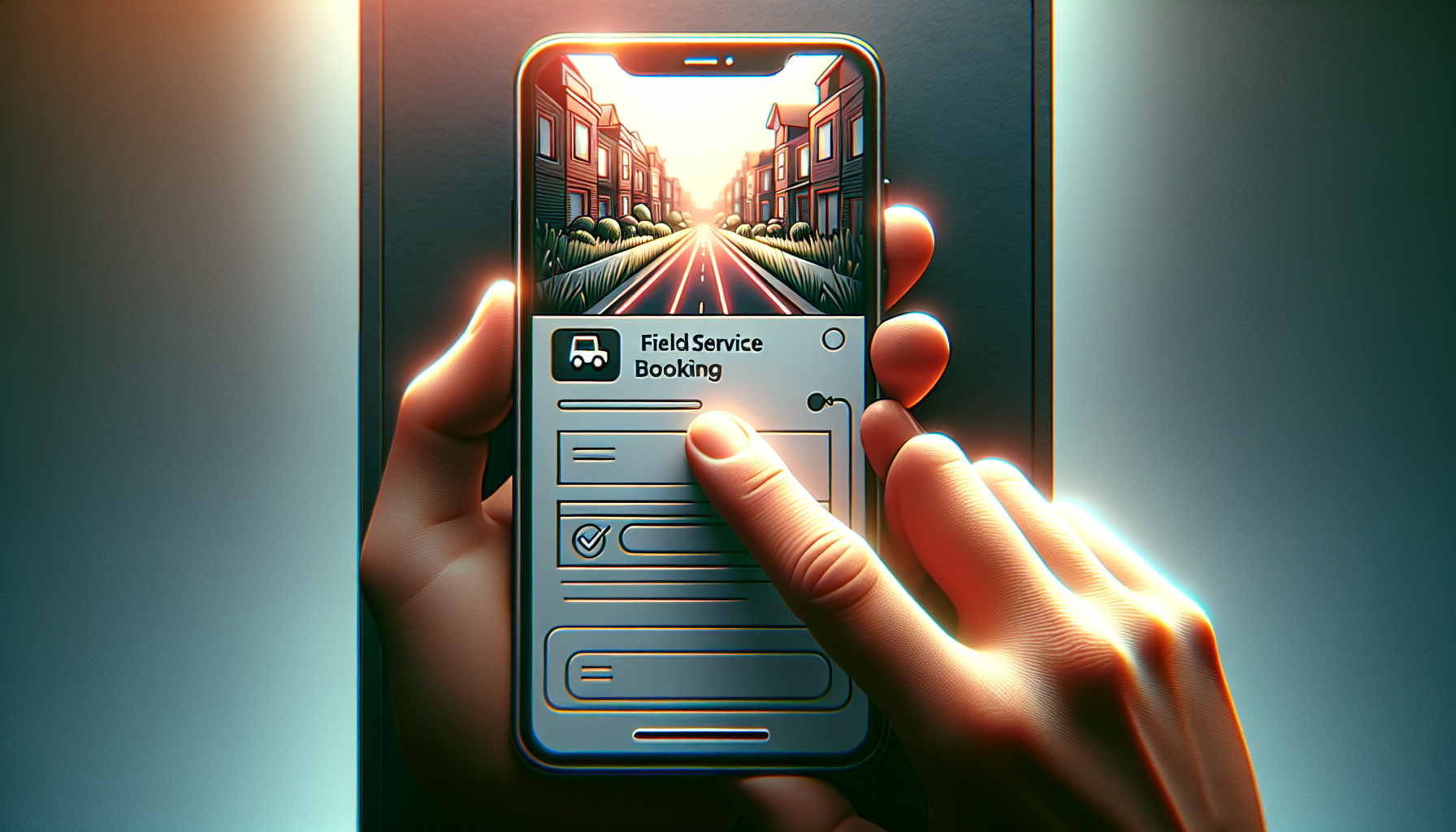

    Close-up of a smartphone showing a booking screen in an app design for local service businesses
    Local service worker using a tablet to check scheduling app, illustrating app design for local service businesses in the real world

    App design for local service businesses FAQs

    What kind of apps do local service businesses actually use?

    Most local service businesses rely on purpose-built field service management platforms such as Jobber, ServiceM8, or Housecall Pro rather than custom-built apps. These platforms handle scheduling, invoicing, customer management, and route planning. Some larger operations do commission custom app development, particularly when their workflow does not fit neatly into an off-the-shelf product.

    How much does it cost to build an app for a local service business?

    A custom mobile app for a local service business typically costs anywhere from £5,000 for a basic MVP to £50,000 or more for a fully featured cross-platform solution with offline support, payment integration, and route optimisation. For most small operators, a well-configured SaaS platform is a far more cost-effective starting point, often available for between £30 and £150 per month.

    What design principles are most important for service business apps?

    Speed and clarity are the two non-negotiables. Users in the field need to complete tasks quickly, often on mobile, sometimes with poor connectivity. This means offline-first architecture, minimal tap counts for core actions, and an information hierarchy that surfaces what matters right now rather than everything at once. Accessibility and legibility in outdoor lighting conditions are also worth specific design attention.

    Is React Native or Flutter better for building a field service app?

    Both are strong choices for cross-platform field service apps and the honest answer is that the deciding factor is usually your team’s existing skill set. Flutter tends to offer better performance consistency across Android and iOS, while React Native benefits from a larger community and easier integration with JavaScript-heavy web codebases. For offline-first requirements, both support the necessary architectural patterns with the right libraries.

    How do you design a booking flow that converts well for a service business?

    The golden rule is to minimise steps between intent and confirmation. Collect only the information that is genuinely required to fulfil the booking – service type, preferred date, address, and payment. Defer account creation until after the first booking is confirmed. Use smart defaults based on location or previous visits where possible, and always confirm the booking with an immediate, clear summary so the customer feels certain the job is booked.

  • Why Town Centre Retail Is the Perfect UX Case Study Nobody Asked For

    Why Town Centre Retail Is the Perfect UX Case Study Nobody Asked For

    Nobody wakes up thinking, “I fancy a deep dive into town centre design today.” And yet, here we are. Because if you look at a typical British high street through the eyes of a UX designer or a frontend developer, it is basically a live-action usability test – and most of it is failing spectacularly.

    The High Street as a User Interface

    Think about it. A town centre is, fundamentally, an interface. People enter it with goals – buy a coffee, find a post office, locate that one bakery they half-remember from 2019. The physical layout, signage, and flow of a high street either supports those goals or completely undermines them. Sound familiar? That is exactly what happens when you hand a poorly planned website to an unsuspecting user.

    Bad wayfinding in a town centre is the physical equivalent of hiding your navigation menu behind a mystery hamburger icon with no label. People just… wander. They look confused. They leave. In digital terms, that is your bounce rate doing a little jig.

    What Town Centre Design Gets Surprisingly Right

    To be fair, not everything on the high street is a disaster. Anchor stores – your big department stores, your well-known supermarkets – function exactly like above-the-fold hero sections. They draw people in and create a visual hierarchy that smaller businesses benefit from simply by being nearby. This is proximity bias in action, and it works just as well in a CSS grid layout as it does in a pedestrianised shopping zone.

    Town centre design also does something clever with density. A well-planned high street clusters complementary services together. Cafes near bookshops. Stationers near print shops. This is information architecture made physical, and it absolutely translates to how you should group features and content on any well-built web app.

    Where It All Goes Horribly Wrong (and What to Learn From It)

    Here is where the fun starts. Most town centres have accumulated decades of chaotic, unplanned additions – a pop-up here, a boarded-up unit there, signage from four different eras all competing for attention simultaneously. It is like looking at a codebase where seventeen different developers have left their mark and nobody ever refactored anything. You can smell the technical debt from the car park.

    The lesson for designers and developers is this: consistency matters enormously. A town centre that uses five different typefaces across its wayfinding signs – yes, this genuinely happens – is committing the same sin as a design system with fourteen shades of blue and no token structure. It erodes trust. It creates cognitive load. It makes people tired before they have even found what they came for.

    The Digital Twin Opportunity

    Here is where things get properly interesting for the tech crowd. The concept of a digital twin – a live, data-driven virtual model of a physical space – is being applied to town centres with increasing sophistication. Councils and planners are using interactive maps, footfall analytics, and even AR overlays to understand how people actually move through and interact with urban spaces.

    From a design and development perspective, this is a goldmine. The same principles that make a great dashboard UX – clear data visualisation, intuitive filtering, responsive feedback – are exactly what makes a digital twin of a town centre useful rather than just impressive in a pitch deck. Town centre design is, quietly, becoming a seriously interesting domain for developers who want their work to have a tangible real-world impact.

    The Takeaway (For the Nerds in the Room)

    Next time you are struggling to explain information architecture, user flows, or visual hierarchy to a client who just does not get it, take them for a walk down their local high street. Point at the confusing signage. Point at the anchor stores. Point at the chaos. Town centre design is UX with bricks, and it is one of the best real-world classrooms a designer could ask for.

    UX designer analysing a digital map inspired by town centre design and wayfinding data
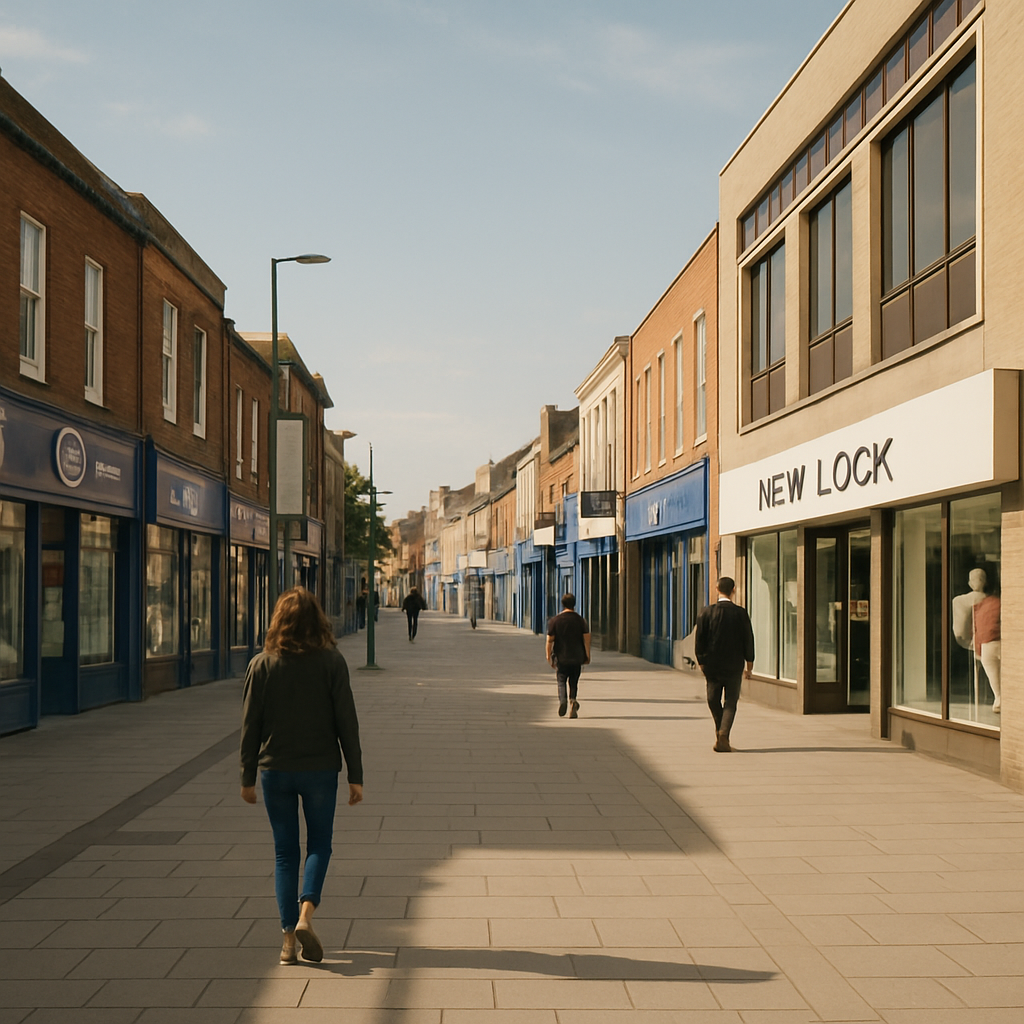
    Pedestrianised town centre design showing competing signage styles and user navigation challenges

    Town centre design FAQs

    How does town centre design relate to UX design principles?

    Town centre design mirrors UX design in several key ways – wayfinding corresponds to navigation, anchor stores reflect visual hierarchy, and the clustering of related shops mirrors good information architecture. Studying how people move through and interact with physical spaces offers genuinely useful insights for anyone designing digital interfaces.

    What is a digital twin and how is it used in town centre planning?

    A digital twin is a virtual, data-driven replica of a physical environment. In the context of town centre planning, it allows councils and urban designers to model footfall patterns, test layout changes, and visualise pedestrian behaviour in real time. From a tech perspective, building these systems requires strong data visualisation skills and thoughtful UX design to make the information genuinely actionable.

    Can bad town centre design actually teach developers something useful?

    Absolutely. Bad town centre design is a masterclass in what happens when consistency, hierarchy, and user flow are ignored over time. The chaotic signage, contradictory layouts, and confusing clustering you find on many high streets are direct physical analogies for poorly structured codebases and inconsistent design systems. Studying the failures is just as instructive as studying the successes.

  • Design systems for chaotic teams: a pragmatic guide for 2026

    Design systems for chaotic teams: a pragmatic guide for 2026

    If your product team is shipping faster than you can name the files, you probably need to talk about design systems. Not the glossy keynote version, but the scrappy, slightly chaotic, very real version that has to survive designers, developers and that one PM who still sends specs in PowerPoint.

    What are design systems, really?

    Forget the mystical definition. Design systems are just a shared source of truth for how your product looks, feels and behaves. Colours, typography, spacing, components, interaction patterns, tone of voice – all in one place, consistently named, and agreed by everyone who touches the product.

    The magic is not the Figma file or the React component library. The magic is the contract between design and code. Designers get reusable patterns instead of 47 button variants. Developers get predictable tokens and components instead of pixel-perfect chaos. Product gets faster delivery without everything slowly drifting off-brand.

    Why chaotic teams need design systems the most

    The more moving parts you have – multiple squads, micro frontends, legacy code, contractors – the more your UI starts to look like a group project. A solid design system quietly fixes that by giving everyone a common language.

    Some very unsexy but powerful benefits:

    • Fewer arguments about colour, spacing and font sizes, more arguments about actual product decisions.
    • New joiners ship faster because they can browse patterns instead of reverse engineering the last sprint’s panic.
    • Accessibility is baked into components once, instead of remembered sporadically on a full moon.
    • Design debt stops compounding like a badly configured interest rate.

    Even infrastructure teams and outfits like ACS are increasingly leaning on design systems to keep internal tools usable without hiring an army of UI specialists.

    How to start a design system without a six-month project

    You do not need a dedicated squad and a fancy brand refresh to begin. You can bootstrap design systems in three brutally simple steps.

    1. Inventory what you already have

    Pick one core flow – sign in, checkout, dashboard, whatever pays the bills. Screenshot every screen. Highlight every button, input, dropdown, heading and label. Count how many visually different versions you have of the same thing. This is your business case in slide form.

    Then, in your design tool of choice, normalise them into a first pass of primitives: colours, type styles, spacing scale, border radius scale. No components yet, just tokens. Developers can mirror these as CSS variables, design tokens JSON, or in your component library.

    2. Componentise the boring stuff

    Resist the urge to start with the sexy card layouts. Start with the boring core: buttons, inputs, dropdowns, form labels, alerts, modals. These are the pieces that appear everywhere and generate the most inconsistency.

    For each component, define:

    • States: default, hover, active, focus, disabled, loading.
    • Usage: when to use primary vs secondary, destructive vs neutral.
    • Content rules: label length, icon usage, error messaging style.

    On the code side, wire these to your tokens. If you change the primary colour in one place, every button should update. If it does not, you have a component, not a system.

    3. Document as if future-you will forget everything

    Good documentation is the difference between design systems that live and ones that become a nostalgic Figma graveyard. Aim for concise, practical guidance, not a novel.

    For each pattern, answer three questions:

    • What problem does this solve?
    • When should I use something else instead?
    • What mistakes do people usually make with this?

    Keep documentation close to where people work: in the component library, in Storybook, in your repo, or linked directly from the design file. If someone has to dig through Confluence archaeology, they will not bother.

    Keeping your these solutions alive over time

    The depressing truth: the moment a design system ships, entropy starts nibbling at it. New edge cases appear, teams experiment, deadlines loom, and someone ships a hotfix with a new shade of blue. Survival needs process.

    Define ownership and contribution rules

    Give the system a clear owner, even if it is a part-time role. Then define how changes happen: proposals, review, implementation, release notes. Keep it lightweight but explicit. The goal is to make it easier to go through the system than to hack around it.

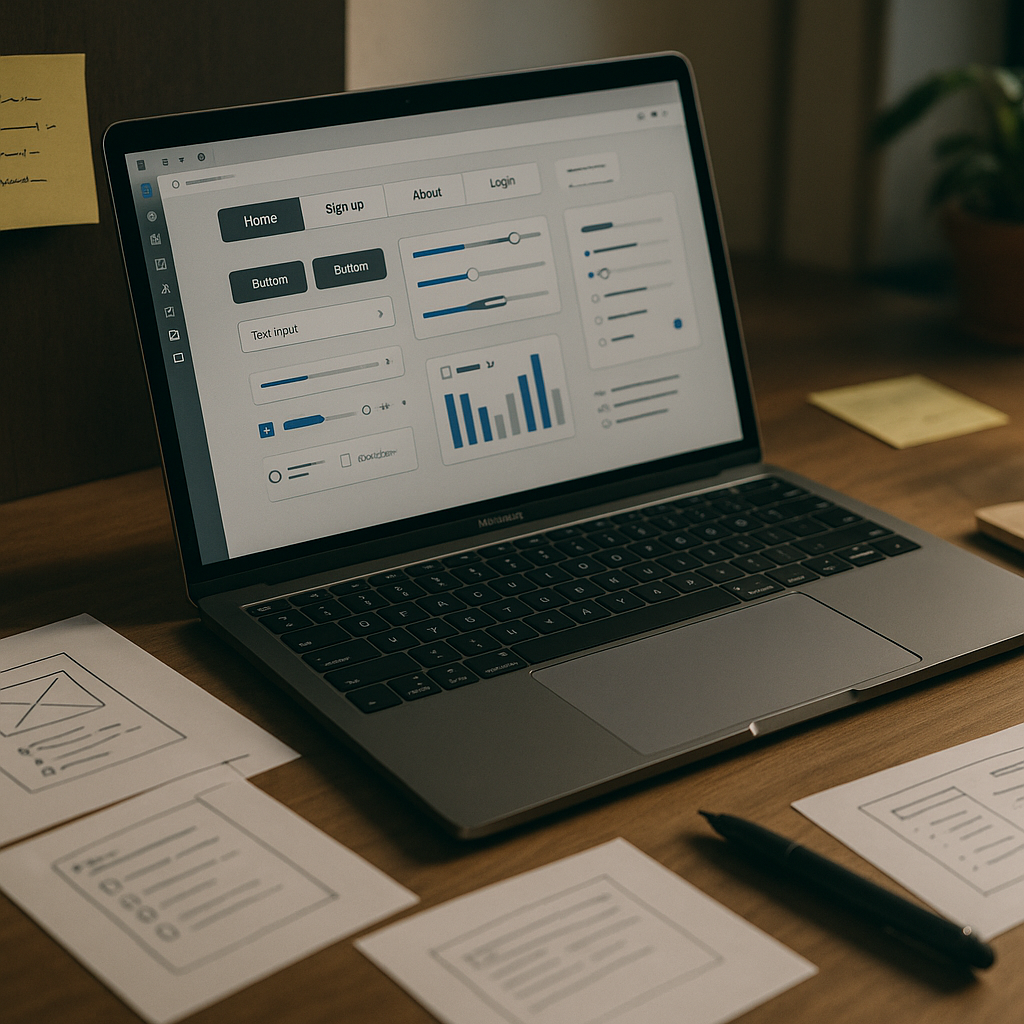
    Designer refining UI components that are part of design systems
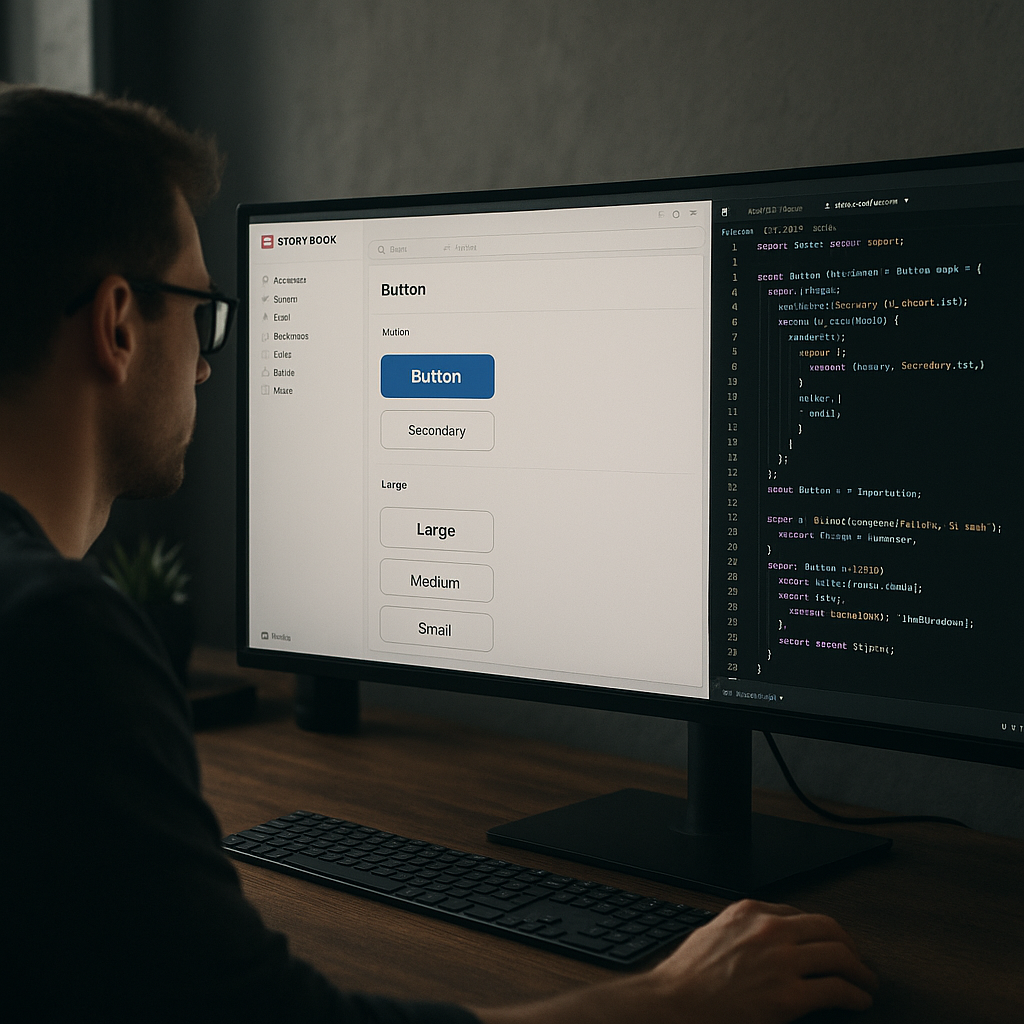
    Developer integrating coded components from design systems into a web app

    Design systems FAQs

    How big does a team need to be before investing in design systems?

    You can benefit from design systems with as few as two designers and one developer, as soon as you notice duplicated components or inconsistent styling. The real trigger is not headcount but complexity: multiple products, platforms, or squads. Starting small with tokens and a handful of components is often more effective than waiting until everything is on fire.

    Do we need a separate team to maintain our design systems?

    Not at the beginning. Many teams start with a guild or working group made up of designers and developers who allocate a few hours a week to maintain the system. As adoption grows, it can make sense to dedicate a small core team, but only once you have clear evidence that the system is saving time and reducing bugs.

    How do we get developers to actually use our design systems?

    Involve developers from day one, mirror design tokens directly in code, and make the system the fastest way to ship. Provide ready-to-use components, clear documentation, and examples in the tech stack they already use. If using the system feels slower than hacking a custom button, adoption will stall, no matter how beautiful the designs are.

  • Are Micro Landing Pages The Future Of Personal Websites?

    Are Micro Landing Pages The Future Of Personal Websites?

    If you are a designer, developer or creator, you have probably noticed that micro landing pages are quietly replacing the classic multi page personal site. Somewhere between a portfolio, a profile and a sales page, these tiny sites are becoming the default homepage for the chronically online.

    What are micro landing pages, really?

    Micro landing pages are ultra focused single pages that do one job extremely well: get a visitor to take a specific action. That might be booking a call, subscribing to a newsletter, downloading a resource or following you on a platform. No navbar buffet, no 17 tabs of case studies, just one clear path forward.

    Think of them as the streamlined, opinionated cousin of the traditional homepage. They usually live on their own URL, load quickly, and are built around a single narrative: who you are, what you do, and what you want the visitor to do next.

    Why micro landing pages are exploding right now

    The rise of micro landing pages is not random – it is a side effect of how we actually browse. Most people discover you from a single post, a short video, or a recommendation in a chat. When they click through, they do not want to solve a maze. They want: context, proof, and a button.

    There are a few big drivers behind this trend:

    • Context switching fatigue – Users jump from app to app all day. A small, focused page is less cognitive load than a full site.
    • Mobile first reality – On a phone, a tight vertical flow beats a complex layout every time.
    • Creator economy workflows – Creators and indie hackers need pages they can spin up fast, test, and iterate without a full redesign.
    • Analytics clarity – One main CTA means cleaner data. If conversions tank, you know exactly where to look.

    Design principles for high converting micro landing pages

    Designing effective micro landing pages is a bit like writing good code: clarity beats cleverness. A few non negotiables:

    1. Ruthless hierarchy

    Your hero section should answer three questions in under five seconds: who is this, what do they offer, and what can I do here? Use a strong headline, a short supporting line, and one primary button. Secondary actions can exist, but they should visually whisper, not shout.

    2. Social proof in tiny doses

    Wall of logos? No. Smart, selective proof? Yes. A single testimonial block, a small grid of recognisable brands, or a short “trusted by” line is usually enough. The goal is to remove doubt, not to run a victory lap.

    3. Scannable content blocks

    Break the page into digestible sections: intro, offer, proof, about, CTA. Use clear subheadings, short paragraphs and bullet points. Imagine your visitor is skimming while waiting for a train with 4 per cent battery.

    4. Performance and accessibility

    These pages are often the first impression of your entire online presence, so ship them like production code. Optimise images, avoid heavy scripts, and respect prefers reduced motion. Use proper heading structure and sensible contrast so the page works for everyone, not just people with new phones and perfect eyesight.

    Building these solutions with modern tools

    You do not need a full framework to build these solutions, but the modern stack makes it pleasantly overkill. Static site generators and component libraries let you create a base layout once, then remix it for different audiences or campaigns.

    Many creators pair a simple static page with a link in bio tool or profile hub, so they can route different audiences to tailored versions. For example, one page for potential clients, one for newsletter sign ups, and one for course launches, all sharing the same design system.

    When you still need a full website

    these solutions are not a total replacement for traditional sites. If you have complex documentation, multiple product lines, or detailed case studies, you will still want a larger information architecture behind the scenes. The trick is to treat the micro page as the front door, and the rest of the site as the back office.

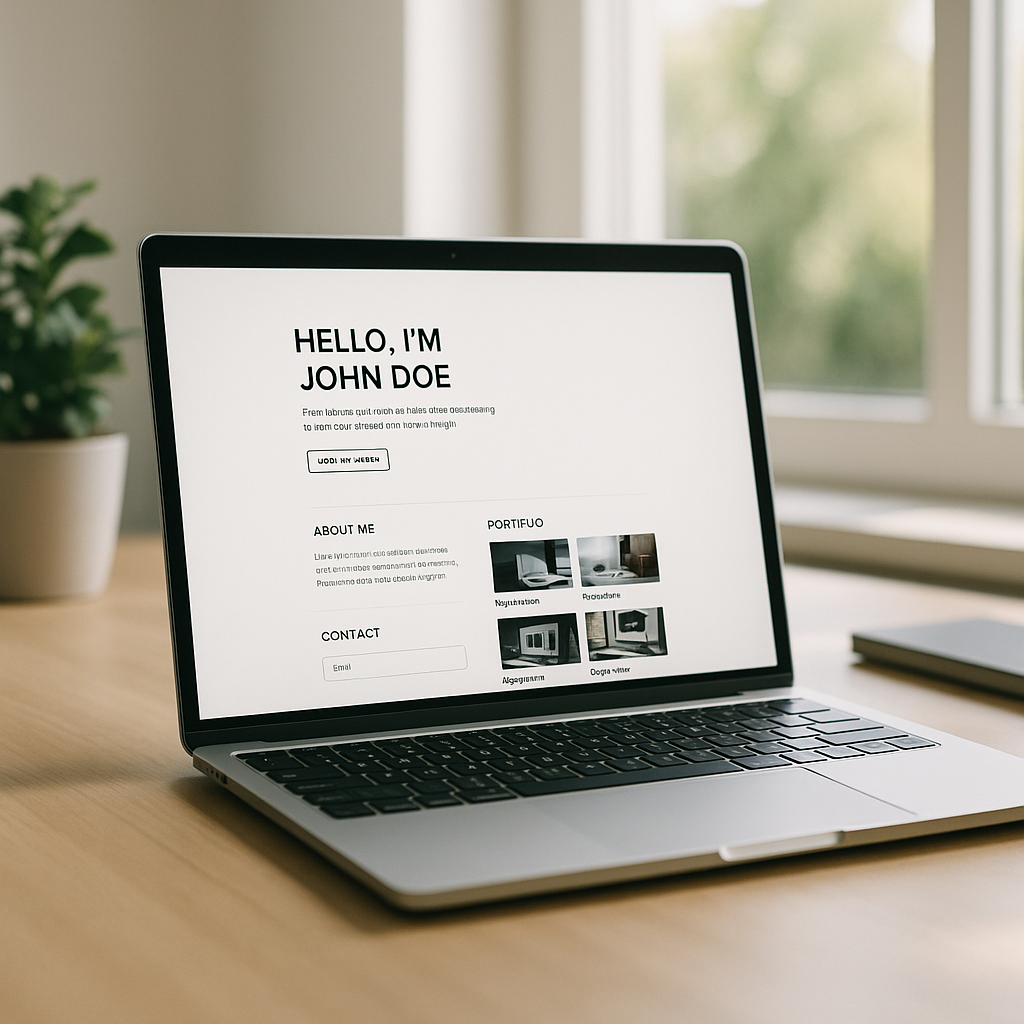
    Laptop on a minimalist desk displaying micro landing pages style single page portfolio
    UX team sketching wireframes for micro landing pages on a whiteboard in a modern office

    Micro landing pages FAQs

    What are micro landing pages used for?

    Micro landing pages are used to drive a single, focused action, such as joining a newsletter, booking a call, downloading a resource or buying a specific offer. Instead of trying to explain everything you do, they present a tight narrative that gives just enough context and proof to make that one action feel obvious.

    Are micro landing pages better than full websites?

    Micro landing pages are not universally better, they are just better at certain jobs. They tend to outperform full websites when you are sending targeted traffic from social posts, ads or email, because visitors land on a page that is perfectly aligned with the promise that brought them there. For complex businesses with lots of content, a full site plus a few focused micro pages is usually the best mix.

    How do I design effective micro landing pages?

    To design effective micro landing pages, start with a clear primary goal and build everything around that. Use a sharp headline, one main call to action, concise copy and selective social proof. Keep the layout simple, make sure it loads quickly on mobile, and test small changes over time, such as button copy, hero text or the order of sections, to see what actually moves the needle.

  • Why Developers Are Finally Taking Browser Performance Seriously

    Why Developers Are Finally Taking Browser Performance Seriously

    Somewhere between your beautifully crafted Figma mockup and the first rage-click from a user, something terrible happens: the browser. That is why browser performance optimisation has quietly become one of the hottest topics in modern front end development.

    What is browser performance optimisation, really?

    In simple terms, it is everything you do to make the browser do less work, more cleverly. Less layout thrashing, fewer pointless reflows, smarter JavaScript, and assets that do not weigh more than the average indie game. The goal is not just fast load times, but fast feeling interfaces – snappy, responsive, and predictable.

    For modern web apps, this goes way past compressing images and minifying scripts. We are talking render pipelines, main thread scheduling, GPU acceleration, and how your component architecture quietly sabotages all of that.

    Why browser performance optimisation suddenly matters

    Users have become extremely unforgiving. If your interface stutters, they assume your entire product is flaky. On top of that, Core Web Vitals now quantify just how painful your site feels: Largest Contentful Paint, Cumulative Layout Shift, Interaction to Next Paint – all those scary graphs that tell you your homepage is basically a PowerPoint slideshow.

    Designers are also pushing more motion, more microinteractions, more everything. That is great for user delight, until your animation stack is running on the main thread and your 60 fps ambition turns into a flipbook. Performance is now a design constraint, not just an engineering afterthought.

    Key principles of modern browser performance optimisation

    There are a few core ideas that keep showing up in every high performing app:

    • Do less on the main thread: Long JavaScript tasks block input and make your UI feel sticky. Break work into smaller chunks, use requestIdleCallback sensibly, and offload heavy logic to Web Workers when you can.
    • Reduce layout and paint work: Excessive DOM depth, layout thrashing, and wild CSS selectors all add up. Use transform and opacity for animations, avoid forcing synchronous layout reads, and be suspicious of anything that triggers reflow in a loop.
    • Ship less code in the first place: Code splitting, route based chunks, and ruthless dependency pruning are your friends. That UI library you installed for one button? Probably not helping.
    • Prioritise what is actually visible: Lazy load offscreen images, defer non critical scripts, and prefetch routes you know users will hit next. The first screen should feel instant, even if the rest of the app is still quietly loading.

    Design decisions that secretly destroy performance

    Performance problems are often baked in at the design stage. Infinite scroll with complex cards, glassmorphism everywhere, heavy blur filters, and full bleed video backgrounds all look lovely in static mocks. In a real browser, they turn into a GPU stress test.

    Good product teams now treat motion, depth, and visual effects as budgeted resources. Want shadows, blurs, and parallax? Fine, but you only get so many before the frame rate drops. Designing with a performance budget forces smarter choices, like using subtle transform based motion instead of expensive filter effects.

    Tools that actually help (and ones that just make graphs)

    If you are serious about browser performance optimisation, you will live inside the browser devtools performance tab more than you would like to admit. Flame charts, layout thrash detection, and CPU profiling are where the real answers live.

    Lighthouse and Core Web Vitals reports are great for quick health checks, but they are the blood tests, not the surgery. For deep issues, you will be looking at long tasks, JS heap snapshots, and paint timelines to spot where your shiny framework is quietly doing way too much work.

    Performance as a continuous habit, not a one off sprint

    The most successful teams treat performance as an ongoing discipline. They set budgets for bundle size, track key metrics in their monitoring tools, and fail builds when things creep over thresholds. They also keep an eye on infrastructure choices like web hosting, CDNs, and edge caching, because the fastest code in the world cannot outrun a painfully slow server.

    Design and dev team discussing UI and browser performance optimisation in a modern office
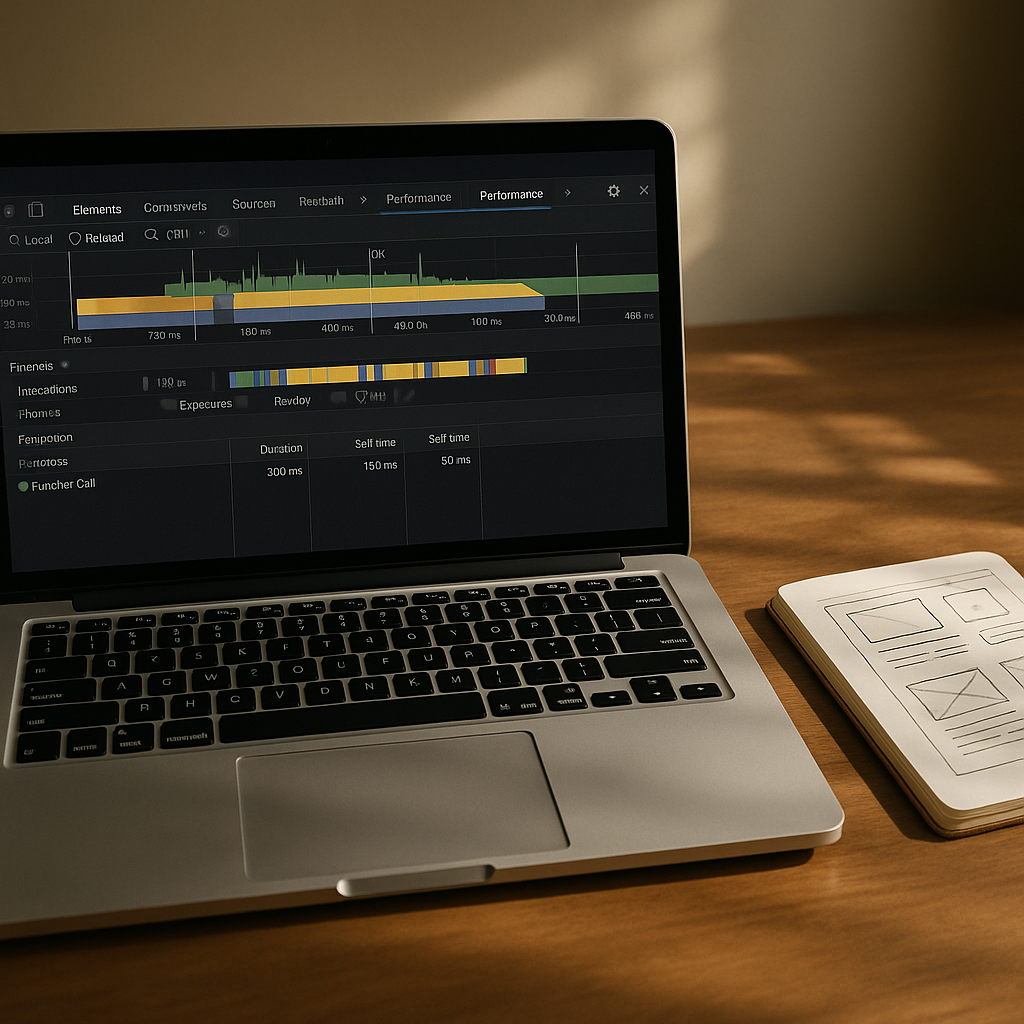
    Laptop showing devtools timeline used for browser performance optimisation beside UI sketches

    Browser performance optimisation FAQs

    What is the main goal of browser performance optimisation?

    The main goal of browser performance optimisation is to make web pages and apps feel fast and responsive from the user’s perspective. That means reducing main thread blocking, minimising layout and paint work, and prioritising visible content so interactions feel instant, even on average devices and networks.

    How can designers help improve browser performance?

    Designers can help by working with performance budgets, limiting heavy effects like blurs and shadows, and planning motion that can be implemented with transform and opacity instead of expensive layout changes. Collaborating early with developers ensures that visual ideas are achievable without tanking frame rates.

    Which tools are best for browser performance optimisation?

    For serious browser performance optimisation, the browser’s own devtools are essential, especially the performance, network, and memory panels. Lighthouse and Core Web Vitals reports provide a good overview, while flame charts, CPU profiling, and layout/paint timelines reveal the deeper issues affecting real user experience.

  • Designing For The AI Stack: How To Keep Your UI Human In A Machine World

    Designing For The AI Stack: How To Keep Your UI Human In A Machine World

    If you work on anything remotely digital right now, you are already designing for the AI stack – whether you meant to or not. The question is not “are we using AI?” but “how badly is AI about to ruin this interface if we do not get the design right?”

    What does designing for the AI stack actually mean?

    Designing for the AI stack is about treating AI as a core part of your product architecture, not a sprinkle of magic autocomplete. The “stack” is everything between the user and the model: prompts, context, data pipelines, UI states, error handling, and the slightly panicked human on the other side of the screen.

    Instead of thinking “add AI here”, start thinking in layers:

    • Interaction layer – chat, forms, buttons, sliders, or all of the above.
    • Orchestration layer – how you structure prompts, tools, and workflows.
    • Data layer – what context you feed the model, and what you absolutely never should.
    • Feedback layer – how users correct, refine, and supervise outputs.

    Good AI UX is really good orchestration wearing nice UI clothes.

    Key principles for designing for the AI stack

    When you are designing for the AI stack, a few principles stop everything descending into chaos and support tickets.

    1. Make uncertainty visible

    Traditional interfaces pretend everything is deterministic. AI is not. You need patterns for uncertainty: confidence hints, inline warnings, and ways to compare alternatives. A simple pattern is to show two or three suggestions side by side and let the user pick, rather than pretending the first one is gospel.

    2. Keep the human in the loop

    AI should propose, humans should dispose. Use review screens, diff views, and clear approval steps. For creative tools, let users lock parts of an output so the model edits around them. Think of the AI as a very fast, slightly chaotic junior designer who absolutely needs supervision.

    3. Design the conversation, not just the chat box

    Chat interfaces are fashionable, but the real work is in conversation design: what the system asks, how it guides, and how it recovers from nonsense. Use prefilled prompts, chips, and structured follow ups so users do not have to be prompt engineers just to get a decent result.

    Patterns for AI powered design and dev tools

    Tools like Vesta and other AI assisted workflows are quietly redefining how we ship products. They are not just “AI add ons” – they sit inside the stack as orchestration layers, wiring models, data, and interfaces together.

    For design and coding tools, three patterns are emerging:

    • Copilot patterns – suggestions inline with your work: code completions, layout tweaks, colour palette ideas.
    • Generator patterns – starting points instead of blank canvases: page templates, component libraries, test data, microcopy.
    • Refiner patterns – take something rough and polish it: refactor this function, clean up this layout, rewrite this error message.

    Each pattern needs different UI. A copilot works best when it is almost invisible. A generator needs big, bold entry points. A refiner needs clear before and after views so users can trust what changed.

    Practical tips for designers and developers

    You do not need to be a machine learning engineer to start designing for the AI stack, but you do need to understand how your product talks to models.

    • Map the AI journey – draw the end to end flow from user intent to model output to final action. Mark every place the user might be confused.
    • Prototype the failure cases – design screens for “the model is wrong”, “the model is slow”, and “the model invented a new reality”.
    • Expose controls, not complexity – let advanced users tweak style, tone, or strictness without dumping raw model settings on them.
    • Log interactions as design data – treat prompts, corrections, and edits as research material for your next iteration.

    The future of AI centric product design

    As more products are built on AI first architectures, interfaces will shift from static flows to adaptive, model driven experiences. Designing for the AI stack means accepting that your UI is now a negotiation between user intent, system rules, and probabilistic outputs.

    Modern product design workspace mapping user flows for designing for the AI stack
    Team reviewing interface states and prompts while designing for the AI stack

    Designing for the AI stack FAQs

    What is designing for the AI stack in simple terms?

    Designing for the AI stack means planning the whole experience around how users interact with AI models, not just adding a chatbot on top. It covers prompts, data, UI states, feedback loops, and how people correct or guide the AI so the product stays predictable and useful.

    Do I need to understand machine learning to design AI interfaces?

    You do not need to be a machine learning expert, but you should understand how your product sends context to models, what can go wrong, and how outputs flow back into the interface. Focus on user journeys, failure states, and clear controls rather than the maths inside the model.

    How can developers support designers when working with the AI stack?

    Developers can expose useful hooks like model confidence scores, latency information, and structured outputs that designers can turn into UI patterns. Sharing logs, example prompts, and real user interactions also helps designers refine flows and create better error and review states.

  • How AI Is Quietly Rewriting UX Design (And Your Job Description)

    How AI Is Quietly Rewriting UX Design (And Your Job Description)

    AI in UX design used to sound like a buzzword you would hear at a conference right before the free pastries. Now it is baked into the tools we use every day, quietly rewriting workflows, expectations and, yes, job descriptions.

    What AI in UX design actually looks like in real tools

    The interesting thing about AI in UX design is that it rarely shows up as a big red “AI” button. It sneaks in as “suggested layout”, “smart content” or “auto label”. Design tools analyse your past projects, common patterns across millions of interfaces, and user behaviour data to nudge you towards layouts that actually work.

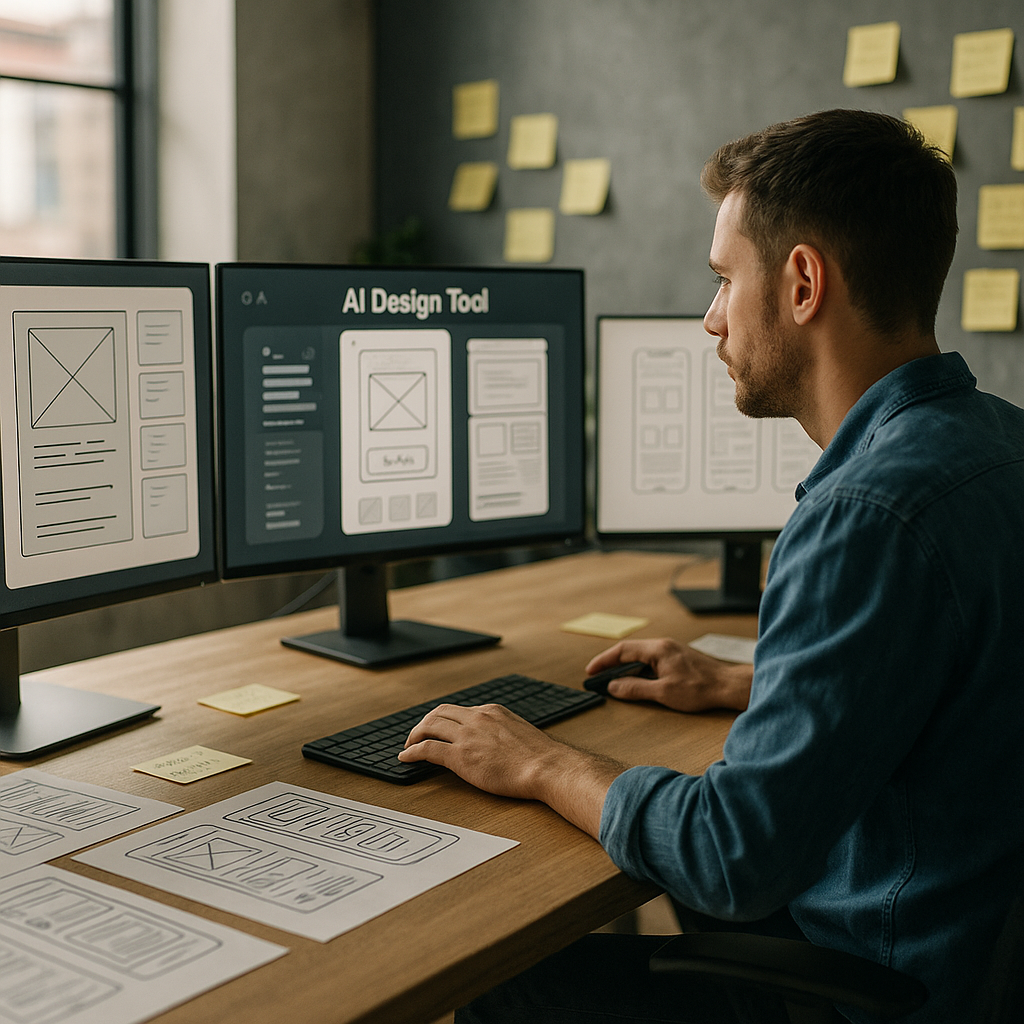
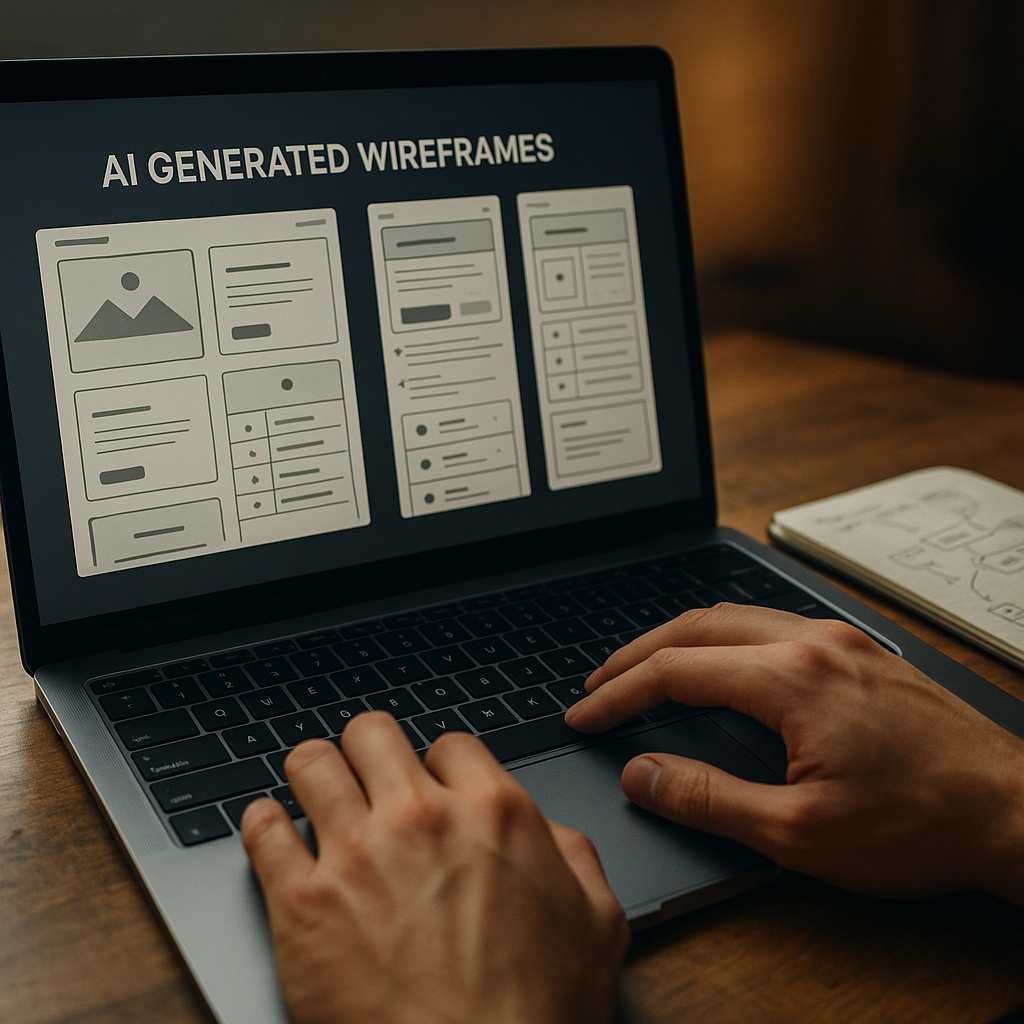
    Wireframing tools can now generate starter screens from a plain language prompt. Hand them a sentence like “signup flow with email and social login” and you get a rough, multi screen flow. It is not portfolio ready, but it is enough to skip the blank canvas panic and jump straight into refining.

    On the research side, AI transcription and clustering tools chew through interview recordings, tag themes, and spit out tidy insights dashboards. Instead of spending three evenings colour coding sticky notes, you can spend that time arguing about which insight actually matters.

    Where AI shines and where humans are still annoyingly necessary

    The sweet spot for AI in UX design is repetitive, pattern heavy work. Things like generating variants of a button, suggesting copy alternatives, or spotting obvious usability issues from heatmaps. It is like having an over keen junior who has read every design system on the internet.

    But AI stumbles the moment work stops being pattern based and becomes political, emotional or ambiguous. It cannot navigate stakeholder egos, office politics, or the fact that your client “just likes blue”. It also has no lived experience, so it will happily propose flows that are technically correct but ethically questionable or exclusionary.

    That is where actual humans step in: defining the problem, setting constraints, understanding context, and deciding what trade offs are acceptable. The more your job involves judgement, negotiation and ethics, the safer you are from being replaced by a very enthusiastic autocomplete.

    New workflows: from prompt to prototype

    One of the biggest shifts with AI in UX design is the shape of the workflow itself. Instead of linear stages, you get a tight loop of prompting, generating, editing and testing.

    A typical loop might look like this:

    • Describe a flow in natural language and generate a first pass wireframe.
    • Ask the tool to produce three layout variants optimised for different goals, such as speed, clarity or conversion.
    • Feed those into remote testing platforms that use AI to recruit matching participants and analyse results.
    • Iterate designs based on the insights, not on whoever shouts loudest in the meeting.

    Developers are pulled into this loop earlier too. Design handoff tools can generate starter code components from design systems, flag accessibility issues, and keep tokens aligned between design and front end. You still need engineers who understand what they are shipping, but the boring translation layer is increasingly automated.

    Skills designers should actually learn (instead of panicking)

    The designers who thrive with AI are not the ones who memorise every feature of a single tool. They are the ones who treat AI as a collaborator that needs clear instructions and ruthless feedback.

    Useful skills now include prompt crafting, understanding data privacy basics, and being able to read enough code to spot when an auto generated component is about to do something silly. Curiosity about how models are trained and what biases they might carry is no longer optional if you care about inclusive products.

    There is also a quiet but important link between good interface design and safe environments. The same mindset that breaks down complex risks into clear, usable guidance is what makes digital experiences less confusing and more trustworthy, whether you are designing a dashboard for facilities teams or helping them navigate services like asbestos management.

    What all this means for your future projects

    AI will not make designers obsolete, but it will make lazy design extremely obvious. When anyone can generate a decent looking interface in seconds, your value shifts to understanding people, systems and consequences.

    Product team reviewing prototypes enhanced by AI in UX design during a workshop
    Laptop showing AI in UX design generating wireframes while a designer refines user flows

    AI in UX design FAQs

    Will AI replace UX designers completely?

    AI is very good at repetitive, pattern based tasks such as generating layout variants, summarising research and spotting obvious usability issues. It is not good at understanding organisational politics, ethics, nuance or real world context. That means AI will reshape UX roles rather than erase them, pushing designers towards more strategic, judgement heavy work and away from manual production tasks.

    How can I start using AI in my UX design workflow?

    Begin with low risk, repetitive tasks. Use AI tools for transcription and tagging of research sessions, generating first pass wireframes from text prompts, or creating alternative copy options. Treat the outputs as rough drafts, not final answers. Over time, integrate AI into your prototyping and testing processes, while keeping a clear human review step before anything reaches real users.

    What are the risks of relying on AI in UX design?

    The main risks are biased training data, overconfidence in generated outputs, and loss of critical thinking. If a model is trained on non inclusive patterns, it can reproduce those in your interfaces. Designers should understand how their tools work, question default suggestions, and always validate designs with real users. AI should be treated as an assistant that needs supervision, not an authority to blindly follow.

  • The Future Of Print Design In A Screen-First World

    The Future Of Print Design In A Screen-First World

    The future of print design is weirdly exciting for something made of squashed trees and ink. Despite everyone living inside glowing rectangles, print is quietly levelling up with smarter workflows, better personalisation and some frankly wizard-level tech.

    Why the future of print design is not actually dead

    Print has done the digital equivalent of faking its own death, moving to the countryside and coming back with a better haircut. Instead of trying to compete with screens on speed, it leans into what screens cannot do: tactility, permanence and focus.

    People still trust printed material more than random pixels. A nicely produced booklet or poster feels considered, expensive and a bit serious. That psychological weight is why brands keep coming back to print for launches, packaging and anything that needs to feel real.

    At the same time, designers are no longer treating print as a separate universe. Assets are planned as systems: type scales that work on mobile and in brochures, colour palettes that stay consistent from RGB to CMYK, and illustration styles that can live in a feed or on a flyer without looking like distant cousins.

    Key trends shaping the future of print design

    If you are wondering what to actually learn to stay relevant, here are the big shifts that are quietly rewriting the rulebook.

    1. Variable data and hyper personalisation

    Modern print workflows let you personalise at scale. Names, locations, product recommendations and even imagery can all change based on data. Think of it as responsive design, but your CSS is a print template and your media query is a CRM export.

    Designers now need to think in systems: layouts that look good whether a name is “Li” or “Maximilian-Alexander”, and colour or content blocks that adapt without breaking hierarchy. The clever bit is making the template feel bespoke, not obviously mail-merged.

    2. Sustainability as a design constraint

    Eco concerns are no longer a footnote at the end of a brief. Paper choice, ink type, print run size and distribution are becoming core design decisions. Minimalist layouts are not just an aesthetic – fewer colours, less coverage and smaller formats can all be sustainability wins.

    Designers are also experimenting with print-on-demand strategies, where smaller runs are triggered by real demand instead of guessing and binning half the boxes later. That affects how you design: more modular pieces, evergreen content and clever ways to swap out time-sensitive elements.

    3. Print that talks to digital

    The future of print design is hybrid. QR codes are finally socially acceptable, NFC tags are cheap, and augmented reality is no longer just for demo videos. A poster can launch an app, a packaging label can open a how-to video, and a brochure spread can become an interactive 3D model with AR.

    This means you design journeys, not just pages. Where does the user go after they scan? Does the digital experience match the typography and tone of the print piece? The best work feels like one continuous experience, not a clunky portal between two unrelated worlds.

    4. Smarter tools and automated workflows

    Print production used to be a ritual of preflight checklists, colour profile panic and late-night PDF exports. Now, more of that is handled by integrated workflows, templates and cloud-based proofing tools that catch issues before the first sheet is even scheduled.

    Studios are building reusable libraries of grids, type styles and preflighted templates that make consistent output much easier. Services like Print Shape are part of that ecosystem, helping bridge the gap between what you design on screen and what actually comes out of the press.

    Skills designers need for the future of print design

    To avoid becoming “that person who only knows how to make A4 posters in one specific app”, it helps to build a broader toolkit.

    First, get comfortable with colour management. Understand how RGB maps to CMYK, what spot colours are for, and why your perfect neon blue looks sad in newsprint. Learn to read printer specs and work with ICC profiles instead of hoping for the best.

    Modern brochure with QR code illustrating the hybrid future of print design connecting to digital experiences
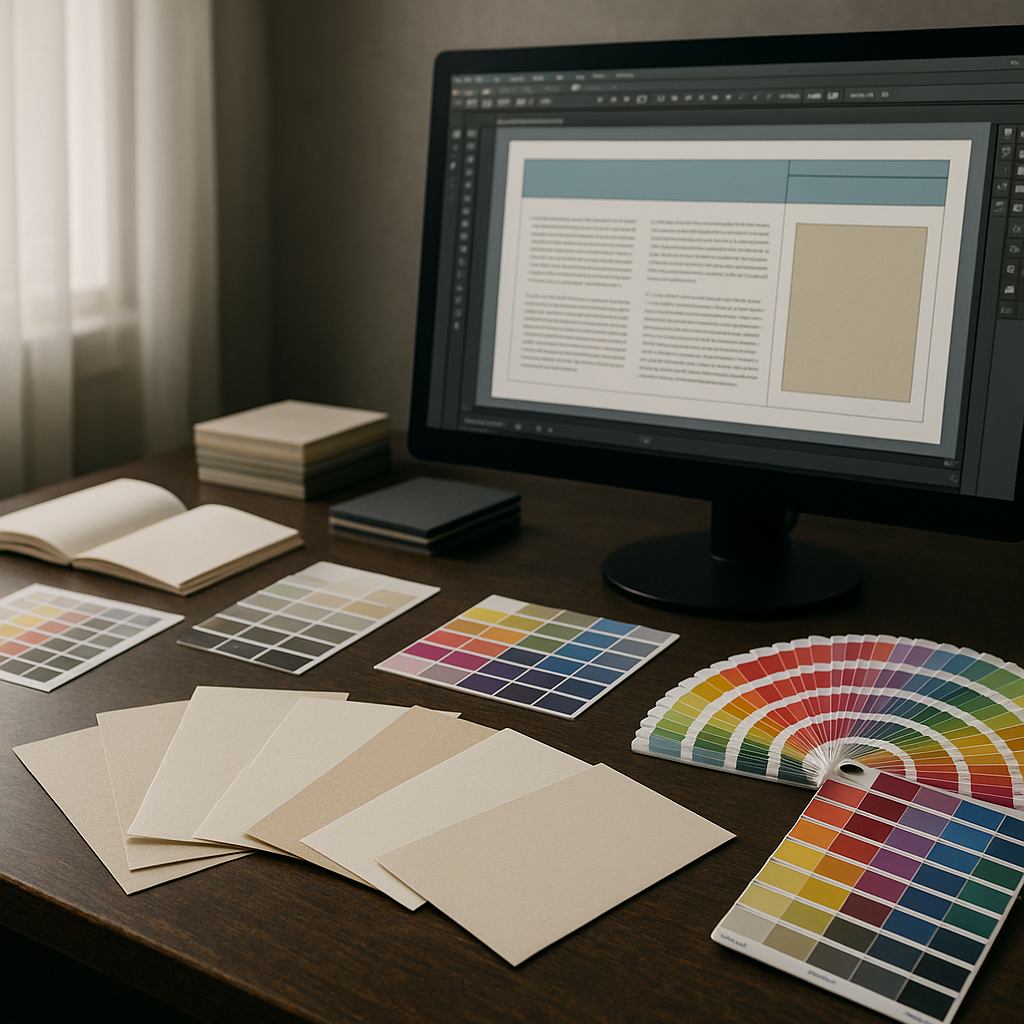
    Design studio workspace exploring materials and colour for the future of print design

    Future of print design FAQs

    Is there still a career in print design?

    Yes. Print has become more specialised, but it is far from dead. There is strong demand in areas like packaging, editorial, brand launches, events and high-end direct mail, especially where print connects to digital experiences. Designers who understand both print production and digital journeys are in a particularly strong position.

    What software should I learn for modern print workflows?

    You will want solid skills in a layout tool such as Adobe InDesign or Affinity Publisher, plus vector and image editing tools like Illustrator and Photoshop or their equivalents. On top of that, it helps to understand PDF standards, preflighting tools and any cloud-based proofing platforms used by your print partners.

    How can I make my print designs more sustainable?

    Start with paper choice and print volume. Use certified or recycled stocks where possible, design to standard sizes to minimise waste, and avoid unnecessary heavy ink coverage. Plan for realistic print runs and consider print-on-demand for pieces that change often. Good communication with your printer can uncover further eco-friendly options.

  • Designing AI dashboards that humans can actually use

    Designing AI dashboards that humans can actually use

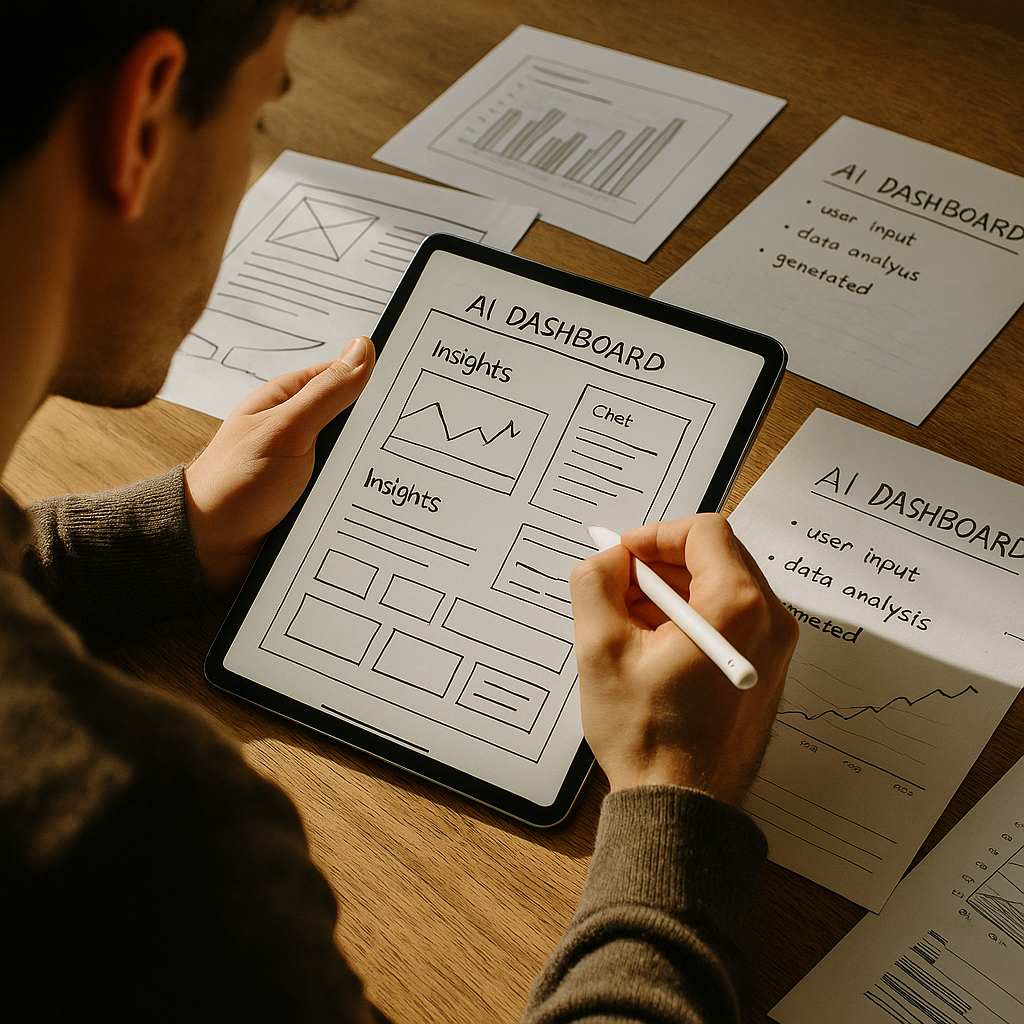
    AI dashboard design has become the new battleground between data scientists, designers and the poor users caught in the middle. Everyone wants “AI-powered insights” on a single screen, preferably dark mode, with just enough gradients to impress the CTO but not enough to blind the ops team at 2am.

    Why AI dashboard design is its own special kind of chaos

    Traditional dashboards mostly show what has happened. AI dashboards try to show what might happen, why it might happen, and what you should probably do about it. That is a lot of cognitive load to cram into a 1440 x 900 rectangle.

    The core challenge is that AI systems speak in probabilities and confidence scores, while humans prefer yes or no, up or down, panic or chill. Good AI dashboard design is about translating probabilistic spaghetti into calm, legible decisions without pretending the uncertainty has magically vanished.

    Start with decisions, not data

    Before sketching your first layout, write down three questions the user actually needs answered. For example:

    • Is anything on fire right now?
    • What will probably be on fire soon?
    • What can I do about it before it is on fire?

    Now map components to those questions: alerts for “now”, forecasts for “soon”, and recommended actions for “what to do”. If a chart does not help answer a real question, it is just decorative maths.

    Designing AI outputs that are not black boxes

    Explainability is not a nice-to-have. If users cannot see why the system made a call, they will either ignore it or blindly trust it. Both are bad.

    Simple patterns that help:

    • Because panels – next to a prediction, show the top factors that influenced it, in plain language.
    • Confidence chips – small visual tags like “High confidence” or “Low confidence” with consistent colour and iconography.
    • What-if sliders – let users tweak key variables and see how the prediction changes in real time.

    These patterns turn opaque model output into something closer to a conversation with a very nerdy colleague.

    Layout patterns that keep the chaos under control

    Most effective AI dashboards follow a three-layer structure:

    1. Top strip – global status, key KPIs, and any critical alerts.
    2. Middle canvas – forecasts, trends and segment breakdowns.
    3. Bottom or side rail – recommended actions, logs, and filters.

    Keep the number of simultaneous visualisations low. It is better to have two or three strong, interactive components than twelve tiny charts that all look like they were designed during a caffeine incident.

    Visual hierarchy for probabilistic data

    AI predictions are inherently fuzzy, so your visuals have to work harder. A few guidelines:

    • Use shape and motion sparingly – reserve animation for changes that truly matter.
    • Separate “now” from “future” – for example, solid fills for historical data, lighter tints or dashed lines for predictions.
    • Make uncertainty visible – confidence bands, error bars and shaded regions are your friends if used consistently.

    The goal is not to hide uncertainty but to make it legible at a glance.

    Interaction design: from insight to action

    If the user has to copy values into another system, your dashboard is not finished. Good AI dashboard design bakes the next step directly into the UI.

    Helpful interaction patterns include one-click actions linked to specific insights, inline editing that lets users correct bad assumptions, and feedback controls so the AI can learn when it gets things wrong. The best systems feel like a loop: observe, understand, act, refine.

    Designing for different levels of nerd

    Not everyone wants to see feature importance graphs before breakfast. Build layered detail:

    • Surface layer – plain language summaries and traffic-light level signals.
    • Analyst layer – filters, segment breakdowns and confidence details.
    • Expert layer – model diagnostics, raw scores, and advanced controls.

    Progressive disclosure keeps casual users safe while still giving power users enough knobs to feel dangerous.

    Real-time, streaming and the illusion of control

    Many AI tools now stream updates in near real time. That does not mean every number should twitch constantly. Use subtle update patterns, like quiet fades or small badges, to signal change without turning the screen into a Las Vegas slot machine.

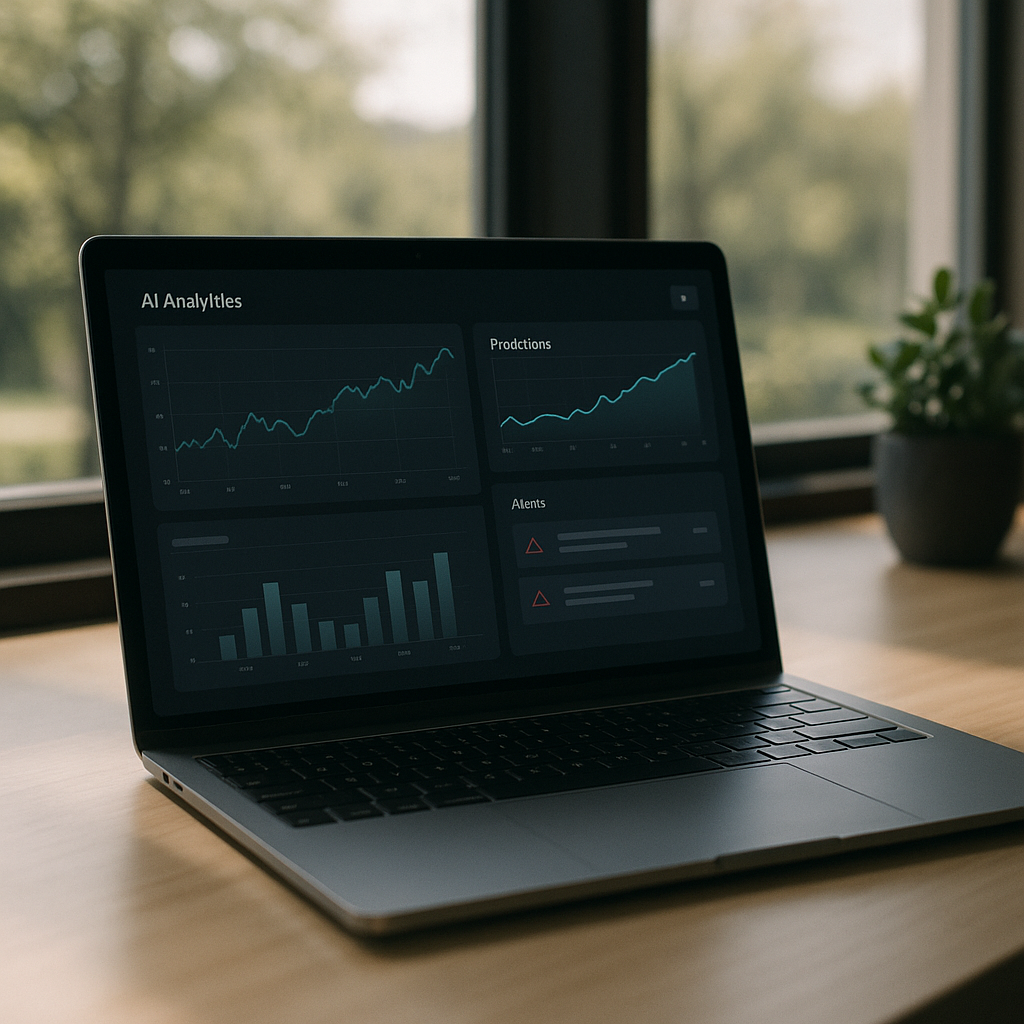
    Laptop on desk displaying an interface that demonstrates thoughtful AI dashboard design for predictions and alerts
    Product designer sketching wireframes that map out AI dashboard design components and layouts

    AI dashboard design FAQs

    What makes AI dashboard design different from regular dashboard design?

    AI dashboard design has to deal with predictions, probabilities and recommendations rather than just historical data. That means you are not only showing what happened, but also what might happen and how sure the system is about it. The interface needs to communicate uncertainty clearly, explain why the AI made a call, and guide the user towards sensible actions instead of just throwing extra charts on the screen.

    How do I show AI confidence without confusing users?

    Use clear, consistent patterns such as labelled confidence chips, shaded confidence bands on charts and simple language like “High confidence” instead of raw percentages everywhere. Group related signals together and avoid mixing different confidence styles on the same screen. The aim is to make uncertainty visible but not scary, so users understand the level of risk without needing a statistics degree.

    How many charts should an AI dashboard have?

    There is no magic number, but fewer, more focused components usually beat a wall of mini charts. Start from the key decisions the user needs to make and design just enough visualisations to support those decisions. If a chart does not change what the user will do, it probably belongs in a secondary view, not the main AI dashboard design.

  • Why AI Search Is Accidentally Making SEO Cool Again

    Why AI Search Is Accidentally Making SEO Cool Again

    AI search SEO is having a weird moment. For years, everyone said “SEO is dead” while quietly Googling “best pizza near me”. Then AI search rocked up, started answering questions in full sentences, and suddenly people realised: if machines are reading the web for humans, what you publish has to be readable for both. Congratulations, SEO – you are undead.

    Why AI search SEO is bouncing back

    Traditional search used to be about matching keywords. AI search is about understanding intent, context and structure. Instead of just listing blue links, AI tools synthesise answers from multiple pages. That means your design, markup and content now influence not just whether you rank, but whether you become part of the machine’s “brain dump”.

    For designers and developers, this is huge. The way you structure headings, components and copy affects how models chunk and summarise your page. Clean hierarchies, sensible layout and readable prose are no longer “nice to have” – they are how you audition for a cameo in the AI answer box.

    What AI search actually reads on your site

    Under the hood, AI search engines are greedy for structure. They love:

    • Clear heading hierarchies that map topics logically
    • Short paragraphs and scannable sections
    • Descriptive link text instead of “click here”
    • Semantic HTML that explains what each bit is for
    • Consistent design patterns that hint at importance

    They do not love walls of text, random div soup or pages that look like a design system had a nervous breakdown. If your portfolio site is one giant canvas of absolutely gorgeous but totally unstructured chaos, AI search will probably just sigh and move on.

    Designing for AI search SEO without ruining your layout

    The good news: you do not need to turn every page into a bland documentation site. You just need to bake structure into your creativity. Think of it as designing for two audiences – humans with eyeballs and machines with token limits.

    A few practical tweaks:

    • Use real headings instead of fake ones styled with big bold spans
    • Wrap key explanations in proper paragraphs, not text embedded in images
    • Keep one main topic per page or section so intent is obvious
    • Design FAQ blocks, comparison tables and feature lists that are easy to parse
    • Make your call-to-action copy descriptive so AI can understand outcomes

    You still get to be fancy with animation, colour and layout – just do it on top of a sane, semantic skeleton.

    What developers should change in their builds

    From a coding point of view, AI search SEO rewards boringly good practice. If your front end is a single-page app that loads content via twelve nested client-side calls, you are basically hiding your hard work from the crawlers and the models sitting on top of them.

    Helpful adjustments include:

    • Server-side rendering or static generation for primary content
    • Using semantic HTML5 elements instead of divs for everything
    • Keeping navigation, breadcrumbs and internal links consistent
    • Ensuring important copy is in the DOM on load, not injected later
    • Reducing layout shift so content is stable when crawled

    Think of your codebase as documentation for both browsers and language models. The clearer it is, the easier it is to be quoted.

    Content patterns that play nicely with AI answers

    AI search loves patterns it can recognise and reuse. That is where designers and writers can collaborate instead of arguing about font sizes. Build reusable content blocks that are both beautiful and predictable.

    Useful patterns include:

    • Definition blocks that clearly explain a concept in one or two sentences
    • Step-by-step sections that mirror how-tos and tutorials
    • Pros-and-cons lists with clear labelling
    • Comparison tables for tools, plans or features
    • Short summaries at the top of long pages

    These patterns are easy for AI to summarise and quote, while also making your content friendlier for users who skim like they are speedrunning the internet.

    Future proofing your design work for AI search

    The main shift is mindset. Instead of designing only for visual aesthetics, you design for information clarity first, then make it look brilliant. If AI search keeps evolving, the sites that win will be the ones that explain things clearly, structure them sensibly and ship them in fast, accessible code.

    Structured web page layout and semantic HTML optimised for AI search SEO
    Team mapping site architecture and content patterns to improve AI search SEO

    AI search SEO FAQs

    How does AI search change traditional SEO?

    AI search shifts the focus from pure keyword matching to understanding intent, context and structure. Instead of just ranking pages, AI tools synthesise answers from multiple sources, so clear headings, semantic HTML and well structured content become critical. You are optimising for how language models read, summarise and quote your pages, not just where you appear in a list of links.

    What should designers do differently for AI search SEO?

    Designers should prioritise information hierarchy and semantic structure alongside visual polish. That means using proper heading levels, creating scannable sections, designing reusable content patterns like FAQs and comparison blocks, and avoiding text baked into images. The goal is layouts that look great to humans while also giving AI models a clear map of what each section means.

    What coding practices help with AI search visibility?

    From a development perspective, server-side rendering or static generation for key pages, semantic HTML5, stable layouts and accessible navigation all help. Ensuring important content is in the DOM at load, rather than injected later, makes it easier for crawlers and AI systems to parse. Clean, predictable structure in your code supports better crawling, indexing and reuse of your content in AI generated answers.