Category: Design

  • The Principles Behind BBC iPlayer’s UI: What Every British Product Designer Can Learn From It

    The Principles Behind BBC iPlayer’s UI: What Every British Product Designer Can Learn From It

    I’ve spent more time than is professionally advisable picking apart how the BBC iPlayer interface works. Not watching content on it, mind you. Actually staring at hover states, tab-order behaviour, loading skeletons, and the way the navigation rail collapses on a 40-inch telly versus a 320px mobile viewport. The BBC iPlayer UI design principles UK product teams should be studying are genuinely embedded in every screen of that product, and I want to drag them out properly.

    This is a teardown, not a fan letter. Where iPlayer does something brilliantly, I’ll say so. Where there’s a head-scratching inconsistency, that’s going in too. Either way, there’s a stack of transferable thinking here that most UK product teams would benefit from nicking.
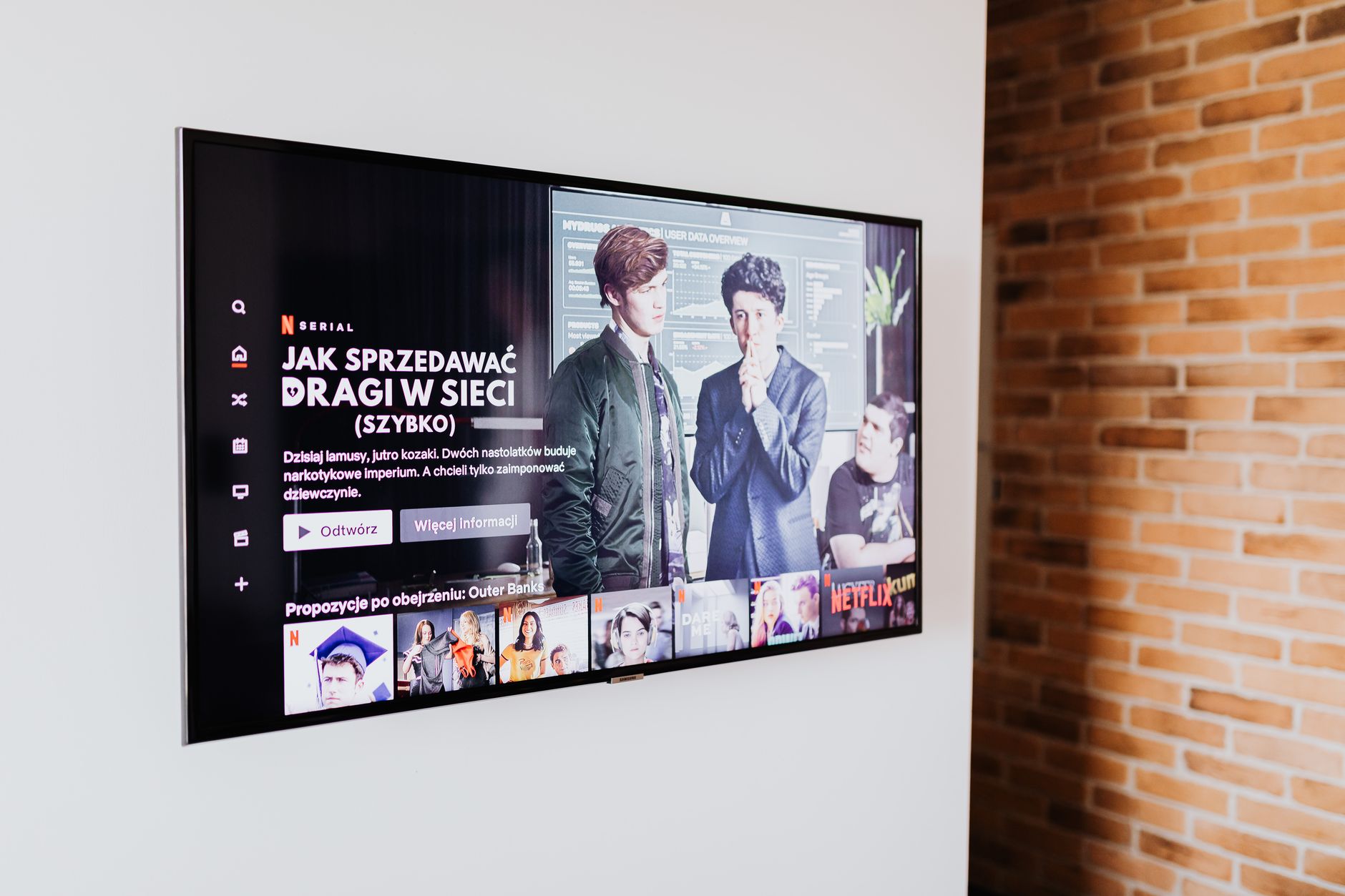
    Television screen showing a streaming content grid, illustrating BBC iPlayer UI design principles UK product teams can learn from
    Photo by https://kaboompics.com/ on Pexels

    How iPlayer handles content discovery without overwhelming you

    Content discovery is probably the hardest design problem in streaming. You have thousands of titles, a user with forty-five seconds of patience, and a recommendation system that may or may not know them well yet. iPlayer’s solution is surprisingly restrained given the scale of the BBC’s catalogue.

    The homepage is structured as a progressive hierarchy. The hero slot anchors attention, but it’s not auto-advancing like Netflix’s carousel assault on your focus. Below it, content rows are labelled with actual editorial intent: “Catch Up”, “Recommended for You”, “New Arrivals”. These are not clever algorithmic names. They’re plain English labels that tell you immediately what logic organised them. That’s a design decision, not a default.

    I’d argue the most important part of the discovery UI is what iPlayer refuses to do. There are no autoplay trailers on hover in the web interface. There’s no “you have 5 seconds before the next episode starts” pressure mechanic unless you’ve opted into it. That restraint lowers cognitive load measurably, and it respects the fact that a significant portion of the BBC’s audience, covered thoroughly in the over-55 audience design piece on this blog, find high-density motion interfaces actively hostile.

    Accessibility as a structural decision, not a retrofit

    The BBC publishes its own accessibility standards, the BBC Accessibility Standards and Guidelines, which sit alongside WCAG 2.2. That’s not marketing copy. You can see the results of it directly in iPlayer’s codebase: focus states that are actually visible (not that 1px dashed outline browsers default to), semantic HTML that makes keyboard navigation feel deliberate rather than accidental, and live subtitle rendering that works across every surface including smart TVs where most streaming services just… don’t bother.

    The subtitle implementation is worth a short paragraph on its own. iPlayer’s subtitles render as HTML text overlaid on the video container rather than burned into the video stream. That means font size, colour, and background opacity are all user-adjustable. It also means the subtitle DOM is accessible to screen readers in certain configurations. That’s technically more complex to implement than a static .vtt file being displayed, and the BBC chose to do it anyway. That’s what “accessibility as infrastructure” looks like rather than accessibility as checkbox.

    If your product team is still treating accessibility annotations as a final design-handoff step, iPlayer is a case study in why that approach breaks down. The accessibility behaviour here is inseparable from the component architecture. You can’t retrofit it cleanly. Build it in or spend twice the effort later. This connects to the same reasoning I wrote about in the icon design system teardown, where icon meaning and accessibility labelling need to be decided at the system level, not icon by icon.

    Multi-device consistency and where it gets complicated

    iPlayer runs on an extraordinary range of surfaces. A 2013 Samsung smart TV, a current-gen PlayStation, a 320px Android handset, a desktop browser, and an iPad all need to present the same content catalogue through fundamentally different interaction paradigms. That is an engineering and design problem most product teams never encounter at this scale, but the principles iPlayer uses to solve it are still directly applicable.

    The key move is abstracting the design system away from the input model. The layout responds not just to screen size but to inferred input type: pointer (mouse/trackpad), touch, or remote/d-pad. The navigation rail behaviour changes meaningfully between these modes. On a remote-controlled TV interface, every interactive element needs to be reachable via directional navigation without any pointer. iPlayer’s focus management logic handles this without the user ever thinking about it.

    For most product teams the relevant principle is this: design for your secondary device first. iPlayer’s constraints from TV remote navigation have made the whole interface more keyboard-accessible by necessity. That’s a good trade. If you’re building a web app and keyboard navigation is an afterthought, try designing the component interaction model for a d-pad first and then add pointer support on top. The resulting component will be cleaner.

    Performance design and the perception of speed

    iPlayer’s actual page performance is not perfect. Run it through WebPageTest on a throttled 4G connection and you’ll see a real-world LCP that could be sharper. But the perceived performance is well managed, and that distinction matters more to users than a 100/100 Lighthouse score.

    The loading skeleton UI is implemented with care. Skeletons match the aspect ratios of the content cards they’re replacing, including the 16:9 thumbnail, the title line, and the metadata line. When content loads, there’s no layout shift. The skeleton was drawn to the correct dimensions. This is a WCAG-adjacent win but also just good engineering; it prevents the cascading reflows that trash Core Web Vitals scores and make pages feel broken to users even when the content eventually renders correctly.

    Image delivery on iPlayer also uses responsive sizing properly. The BBC’s image service appends dimension parameters to thumbnail URLs so the browser receives an image at the correct resolution for the current viewport. I’ve seen mid-sized UK product teams serving 1200px wide thumbnails inside 240px card slots. That’s not just a performance problem; it’s a data usage problem for mobile users on capped plans, which the Ofcom Connected Nations report consistently shows is still a significant real-world concern in the UK outside major city centres.

    The design system thinking underneath it all

    The BBC’s GEL (Global Experience Language) design system is public, and it’s worth reading even if you’re not building a product that touches the BBC at all. GEL is the spine of iPlayer’s consistency. Components are defined with explicit spacing, type scales, and interaction states at the system level. Individual feature teams don’t design new card components from scratch; they pull from GEL.

    That’s the transferable bit. The specific components in GEL don’t matter to your product. The structure of the thinking does. When a design decision is made once at the system level and then pulled into features rather than reinvented per screen, you ship faster, the product feels more coherent, and edge cases (like that 320px viewport on a cheap Android handset) get solved once and inherited everywhere.

    If your team is still at the stage of building a design system, the TypeScript for designers piece is worth reading alongside this one, because codifying your tokens and component contracts in a typed system is what prevents GEL-style consistency from decaying over time as teams grow.

    The BBC iPlayer UI design principles UK teams should extract aren’t magic. They’re the result of treating design constraints as opportunities, building accessibility into architecture, and refusing to optimise for engagement metrics that make interfaces worse. That combination is rarer than it should be, and iPlayer is one of the cleaner examples of it on any screen in the country.


  • How to Build a Freelance Design Portfolio That Ranks on Google in 2026: A UK-Specific SEO Breakdown

    How to Build a Freelance Design Portfolio That Ranks on Google in 2026: A UK-Specific SEO Breakdown

    Most freelance design portfolios are beautiful and invisible. The designer has spent weeks obsessing over the grid, the typeface, the hover states, and the case study photography, and then published it to a domain that Google has essentially never heard of. I’ve seen this pattern so many times it’s almost a genre. The portfolio exists; it just doesn’t rank. And if it doesn’t rank, UK clients pitching briefs into Google, which most of them are, will never find it.

    This guide is a proper technical walkthrough for getting your freelance design portfolio to show up in organic search in 2026. Not vague advice about “posting on LinkedIn”. Actual site architecture decisions, Core Web Vitals targets, schema markup you can implement today, and the local signals that genuinely differentiate you for UK clients. Let’s get into it.

    Freelance designer's workspace with portfolio site on screen, relevant to freelance design portfolio SEO UK 2026
    Photo by ready made on Pexels

    Why freelance design portfolio SEO UK 2026 is a different problem to generic SEO

    Portfolio SEO has a structural problem that most tutorials skip. You’re not an e-commerce site with thousands of product pages, and you’re not a blog with 200 posts. You have maybe six case studies, an about page, a contact page, and a services page if you’re organised. That’s a thin site, and Google treats thin sites with suspicion unless you compensate with strong signals elsewhere.

    The UK angle compounds this. If you’re a UX designer in Bristol or a brand identity designer in Leeds, you’re not trying to rank globally. You want to appear when someone in your target geography types “freelance UX designer Bristol” or “brand designer for fintech startups UK”. That’s local SEO intersecting with professional services SEO, and the signals that matter are slightly different from what a generic content-farm guide will tell you.

    The good news: the competition is weak. The overwhelming majority of freelance portfolios have no structured data, poor Core Web Vitals, zero local signals, and a flat site structure. Doing the basics well puts you ahead of most of the field.

    Site architecture: stop building a single-page portfolio

    Single-page portfolios are a death sentence for organic search. If everything lives on one URL, you have one chance to rank, and that one page has to fight for attention across every keyword simultaneously. Google can’t index what it can’t differentiate.

    The architecture I’d recommend is simple but specific. Give each major service its own page. If you do brand identity, UX design, and motion graphics, those are three pages with three distinct keyword opportunities. Give each case study its own URL, not a modal or a lightbox. Give your about page real content, not two sentences. And if you serve specific geographies or industries, build pages for those too: “UI design for fintech” or “brand identity for London startups” are genuinely searchable.

    Internal linking matters here. Each case study should link to the relevant service page. Your service pages should link to each other where they’re related. This is the same logic I covered in the piece on bento grid layouts for SaaS product pages, where the content hierarchy directly affects how users (and crawlers) understand what you do.

    Core Web Vitals targets for 2026

    Core Web Vitals are a confirmed ranking signal, and portfolio sites have an ironic tendency to fail them badly because designers love large images and JavaScript-heavy animations. Google’s PageSpeed Insights tool is free, takes thirty seconds, and will tell you exactly where you’re losing points. Run it on your homepage and every case study page.

    The three metrics to hit: Largest Contentful Paint (LCP) under 2.5 seconds, Cumulative Layout Shift (CLS) under 0.1, and Interaction to Next Paint (INP) under 200 milliseconds. LCP is usually your biggest problem because hero images and full-bleed case study photography are heavy. Fix it by serving images in WebP format, using loading="lazy" on below-the-fold images, and using fetchpriority="high" on your actual LCP element. CLS failures almost always come from images without explicit width and height attributes or from web fonts loading late and shifting text. Fix the first with explicit dimensions; fix the second with font-display: swap and preloading your critical fonts.

    INP is newer and measures responsiveness. If you’re running a React or Next.js portfolio (which many developers do after reading our Astro vs Next.js breakdown), watch your JavaScript bundle size. Unnecessary client-side hydration is the usual culprit. Astro’s partial hydration model is genuinely excellent for portfolio sites for exactly this reason.

    Schema markup that actually moves the needle

    Almost no freelance portfolios implement structured data. This is a free win.

    For a freelance design portfolio, three schema types are genuinely useful. First, Person schema on your about page: name, job title, description, and crucially sameAs linking to your LinkedIn, GitHub, Dribbble, and any other authoritative profiles. This helps Google build a knowledge graph entity around you as a professional, which strengthens trust signals across your whole site.

    Second, LocalBusiness schema if you work with local clients. Yes, you can use this as a freelancer. Include your city, your service area, and your contact details. Make sure these match exactly what you have on your Google Business Profile. Consistency between your schema and your GBP listing is a genuine local ranking signal.

    Third, CreativeWork or WebPage schema on case study pages, with author referencing your Person entity. This connects your work back to you as the creator in a machine-readable way. None of this is technically difficult: it’s JSON-LD you drop into a <script> tag in the <head>, and Google’s Rich Results Test will validate it in seconds.

    Local SEO signals for British designers

    If you want to rank for location-specific queries, which you absolutely should if you’re pitching to UK clients, you need to treat your portfolio like a local business online. Set up a Google Business Profile under your name or your trading name, categorised as “Graphic Designer” or “Web Designer”. Add your city to your page titles, your H1s, and your meta descriptions. Not stuffed; just present. “Freelance brand designer, Manchester” in your title tag is perfectly natural.

    Get citations. In the UK, the useful ones are Yell.com, Bark.com, Clutch.co (which has a strong UK presence), and FreeIndex. These are directories that Google actually pays attention to for local professional services. Your name, trading name, and contact details need to be consistent across all of them. Use the same format every time: same spelling, same phone number format, same postcode.

    Reviews matter more than most designers think. Even five genuine Google reviews from past clients will give you star ratings in local search results. Ask clients directly after a project wraps. Most won’t think to do it unprompted, but most are happy to write one if you send them a direct link.

    Content that supports your portfolio without bloating it

    A small blog or insights section can do serious work for your portfolio’s organic visibility without requiring you to become a content machine. The trick is to write for the intersection of what you know and what your target clients are searching for. A post about “how to brief a brand designer” written from a designer’s perspective will rank for searches that UK marketing managers and founders actually type. A post about your process for UX audits will attract clients who already know they need one.

    This is also where you can build topical authority. If your case studies are all fintech work, a few posts about designing for financial services, FCA compliance in UI, or what good fintech onboarding looks like will cluster your site around that niche. Google’s understanding of what your site is about is built from the whole, not just the homepage. I’d keep each post genuinely useful: 600 words of real expertise beats 1,500 words of padding every time. And if you’re the kind of designer who also codes, pieces like our TypeScript introduction for UK designer-developers suggest the territory worth covering, where technical specificity is the differentiator.

    The technical checklist before you publish

    A few things to verify before you consider the site ready. Your robots.txt should allow crawling; it sounds obvious but I’ve seen portfolios inadvertently blocking Googlebot from staging configs carried over to production. Submit an XML sitemap via Google Search Console and verify your domain there: both the www and non-www versions if you haven’t explicitly chosen one and set a canonical. Make sure your HTTPS is properly configured with no mixed content warnings, since Google has treated HTTPS as a lightweight ranking signal for years. Check that your canonical tags point to the right URLs and that you’re not accidentally indexing paginated or filtered views that duplicate content.

    Run Screaming Frog on your domain (the free version handles up to 500 URLs, which is plenty for a portfolio) to catch broken links, missing meta descriptions, and duplicate title tags. Fix those before you build links or push for rankings. The foundation has to be solid or the rest of the work is wasted.

    Freelance design portfolio SEO in the UK isn’t glamorous work. It’s structured data in a text editor, image compression, and directory submissions. But it compounds. The designer who does this in January and publishes two genuinely useful blog posts a quarter will be fielding inbound enquiries by the end of the year from clients they never had to cold-pitch. That’s the whole point.

    Frequently Asked Questions

    How long does it take for a freelance design portfolio to rank on Google?

    For a new domain with good technical foundations, expect three to six months before meaningful organic traffic appears. If you’re targeting low-competition local queries like “freelance designer [UK city]”, you can sometimes see results faster, particularly if you have a complete Google Business Profile and a handful of citations from UK directories.

    Do I need a blog on my portfolio to rank in UK search results?

    Not strictly, but it helps significantly. A blog lets you target informational keywords that your target clients search for, and it builds topical authority around your niche. Even four to six well-written posts per year can meaningfully expand the number of queries your portfolio ranks for.

    What's the best platform for building a portfolio that ranks well?

    Anything that gives you full control over your HTML, meta tags, and structured data. WordPress with a lightweight theme, Astro, or Framer (which now has solid SEO controls) are all solid choices. Avoid platforms that lock your content behind JavaScript rendering without server-side rendering, as Googlebot can struggle with purely client-rendered content.

    Does my Google Business Profile matter if I work remotely with clients across the UK?

    Yes. Even remote freelancers benefit from a GBP listing because it gives you visibility in local pack results when clients search in your city. Set your service area to the regions you actually serve. You don’t have to list a physical address publicly if you work from home.

    How many case studies do I need for good SEO on a freelance portfolio?

    Quality beats quantity. Three to five detailed case studies, each on its own URL with a proper description of the brief, your process, and the outcome, will outperform ten brief project thumbnails on a single page. Give each case study page a unique title tag and meta description targeting the specific type of work it represents.

  • Designing for Older Users: What UK Product Teams Get Wrong About the Over-55 Audience Online

    Designing for Older Users: What UK Product Teams Get Wrong About the Over-55 Audience Online

    Ofcom’s 2024 Online Nation report put a number to something most product teams already suspect but rarely act on: the over-55 demographic is one of the fastest-growing online cohorts in the UK. Not just growing. Growing fast. And yet, if you spend an afternoon watching someone in that age group try to use a typical SaaS product or a government-adjacent web app, you will feel genuine embarrassment at the assumptions baked into our interfaces. I’ve sat in enough usability sessions to know that the gap between what designers think older users can handle and what actually happens on screen is enormous.

    This isn’t an accessibility checkbox article. It’s about the specific, recurring design decisions that make products hostile to people over 55, and what switching those decisions actually looks like in practice. The fix is almost never a separate “accessibility mode”. It’s just better design.

    Older woman using a tablet at home, relevant to designing for older users UK accessibility
    Photo by Marcus Aurelius on Pexels

    Why the over-55 audience is not who you think it is

    The lazy mental model of an older user is someone confused by technology. That model is outdated and statistically wrong. Many people in the 55-75 bracket have been using the internet since the late 1990s. They have more disposable income than younger demographics, they shop online, they bank digitally, they stream. According to Ofcom’s internet use research, broadband penetration among over-65s in the UK has risen significantly year on year. These are not digital novices. They are experienced users dealing with interfaces built by people who did not design with them in mind.

    The actual challenges are specific. Contrast sensitivity changes with age. Motor precision decreases. Reading speed slows when type is small or poorly spaced. Working memory means multi-step flows with no persistent progress information are genuinely harder to complete. None of these things mean someone is bad at technology. They mean the technology is bad at accommodating normal human variation.

    The contrast and type size failures that are everywhere

    Grey text on a white background is the single most common UI failure I see when looking at products aimed at a general UK audience. Designers use it because it looks refined. WCAG 2.1 AA requires a contrast ratio of at least 4.5:1 for normal text. The trendy light-grey placeholder text in form fields routinely fails this. The secondary text on pricing pages fails this. The fine print on checkout screens absolutely fails this.

    Type size is the other obvious one. A base font size of 14px or 15px might render acceptably on a 27-inch monitor at your desk. On a tablet held at arm’s length by someone whose near vision has shifted, it is punishment. Sixteen pixels should be the floor. Eighteen is more honest for body copy. Line height below 1.5 compounds the problem by collapsing the space between lines that lets the eye track correctly.

    If you’ve been reading my earlier piece on choosing and pairing system fonts for the web, you’ll know that system fonts carry genuine legibility advantages at body size, particularly because they’ve been hinted and rendered for the OS they live on. That advantage matters more for older users than it does for anyone else.

    Touch targets and motor precision

    A 24px icon button that expands a menu is fine when you’re 29 and have the fine motor control of someone who grew up texting on a glass screen. It’s a genuine barrier when your hands are less precise. Apple’s Human Interface Guidelines recommend a minimum touch target of 44 by 44 points. Google’s Material Design says 48 by 48dp. Most production UIs I audit for clients are hitting 32 by 32 on interactive elements, sometimes less.

    The fix is not complicated. Add padding. Use larger hit areas than the visible icon. Space interactive elements so that missing one doesn’t accidentally trigger another. These are also excellent improvements for mobile users on a bumpy train, so they help everyone. Good accessibility decisions usually do.

    Related to this: hover states that only appear on desktop are not a navigation strategy. Dropdown menus that require hovering and then moving precisely into a sub-menu without the menu disappearing are a known usability failure for everyone, but disproportionately so for users with slower or less precise cursor movement. The solution is click-to-open behaviour or a transition delay on the menu close.

    Cognitive load and the multi-step flow problem

    The pattern I see causing the most drop-off with older UK users in usability research is multi-step flows with no persistent progress indicator and no ability to go back without losing state. Checkout flows. Application forms. Account setup wizards. The assumption is that a user will hold the full mental model of where they are in the process. That assumption is wrong for many users, and increasingly wrong as the complexity of the task increases.

    Persistent breadcrumbs on long forms. Clear step indicators that say “Step 3 of 5”. Save and return later functionality for longer forms. Autofill that actually works correctly with UK address formats. These are table stakes that many products have not implemented.

    Error messages deserve their own mention. Generic messages like “An error occurred” or “Invalid input” with a red border and no further context are genuinely useless. Precise errors that say “Your sort code should be six digits with no spaces” or “Your date of birth should be in DD/MM/YYYY format” are what accessibility looks like in practice.

    The icon-only interface trap

    Icon-only navigation has been creeping into UK product design for years. It looks clean in Figma mockups at 100% zoom. It is confusing in practice for a significant portion of users. My piece on how product teams are getting their icon systems wrong covers this at length, but the short version is: icons without labels are only clear when the iconography is universal and learnt. Most product icons are neither. Older users who didn’t grow up with a particular design language’s conventions find ambiguous icons significantly harder to decode. Add labels. Combine the icon with text. It adds a few pixels of height to your nav and it eliminates a major source of confusion.

    Designing for older users UK accessibility in real product decisions

    The design decisions that actually fix these issues are not a separate track from good design. They’re the same decisions. High contrast ratios look more professional, not less. Larger text with good line height reads better for everyone. Clear error messages reduce support tickets. Persistent progress indicators reduce abandonment. These are all wins on metrics that product teams already care about.

    If your team hasn’t done usability testing with participants over 55, do it. Recruit through local community organisations, Age UK, or digital inclusion programmes. Watch what happens. I guarantee you will find at least three things to fix before the session ends, and you will fix them faster than any other research you’ve done, because the problems are visible and the solutions are concrete.

    One practical first step: run your existing UI through a contrast checker (there are browser extensions for this) and sort the failures by page priority. Fix the worst offenders on your homepage and primary conversion flows first. That alone will move your accessibility score and your conversion numbers simultaneously.

    The broader point is that designing for older users in the UK isn’t a niche concern or an edge case. It’s designing for a large, growing, and financially significant audience that is currently being failed by most of the interfaces they encounter. Fix the contrast. Fix the type size. Fix the touch targets. Fix the error messages. Then actually test with the people you’re designing for. The rest follows from there.

  • The Typography Stack in 2026: How to Choose and Pair System Fonts Without Looking Cheap

    The Typography Stack in 2026: How to Choose and Pair System Fonts Without Looking Cheap

    Here’s the thing that nobody says out loud: most web font implementations are a performance tax in disguise. You add a Google Fonts <link> in the <head>, you pick something that looks nice in Figma, and then you wonder why your Largest Contentful Paint is a disaster. I’ve watched this play out on dozens of projects, and the pattern is almost always the same. The typography looks considered, the loading experience does not.

    Building a solid system font stack in 2026 isn’t about giving up on brand expression. It’s about being smarter with what you load, when you load it, and how you fall back gracefully when things go wrong. This guide walks through the actual mechanics of doing that, from stack construction to subsetting to font-display strategy, with enough detail to be genuinely useful rather than just vaguely inspirational.

    Designer reviewing a system font stack layout on a widescreen monitor
    Photo by Miguel Á. Padriñán on Pexels

    Why system fonts deserve more respect than they get

    The reputation of system fonts is stuck somewhere around 2014, when using them felt like admitting defeat. That narrative is outdated. The current default system stacks are genuinely good. Apple’s San Francisco is a masterclass in legibility at small sizes. Segoe UI Variable (shipping with Windows 11) is properly optical-size aware. Inter, whilst technically a web font, ships natively in several Linux environments and is increasingly used as a system default in design tools.

    A well-constructed system font stack in CSS looks something like this:

    font-family:
      system-ui,
      -apple-system,
      BlinkMacSystemFont,
      'Segoe UI Variable',
      'Segoe UI',
      Roboto,
      Oxygen,
      Ubuntu,
      sans-serif;

    That stack costs zero bytes, loads in zero milliseconds, and renders without layout shift. On a content-heavy site, that’s worth a lot. The Core Web Vitals improvement alone can be significant, particularly for Cumulative Layout Shift (CLS) and LCP, both of which get hammered by render-blocking font requests.

    When you actually need a web font (and when you don’t)

    I’d argue the honest answer is: less often than you think, and almost never for body copy. System fonts at 16px with sensible line-height and letter-spacing are perfectly readable. The use cases where a web font genuinely earns its keep are narrower than most designers admit.

    Genuine reasons to load a web font include: a logotype-adjacent display face that’s core to the brand identity, a distinctive serif for editorial contexts where the personality of the letterform matters, or a monospaced font for code samples where system options (Courier New, I’m looking at you) are visually terrible. Body copy at 16–18px? The system font stack wins almost every time.

    The question I ask on every project is whether a user could actually tell the difference between the web font and a well-configured system font at reading distance. More often than not, the answer is no. What they will notice is a flash of invisible text or a layout jump. That’s the trade you’re making.

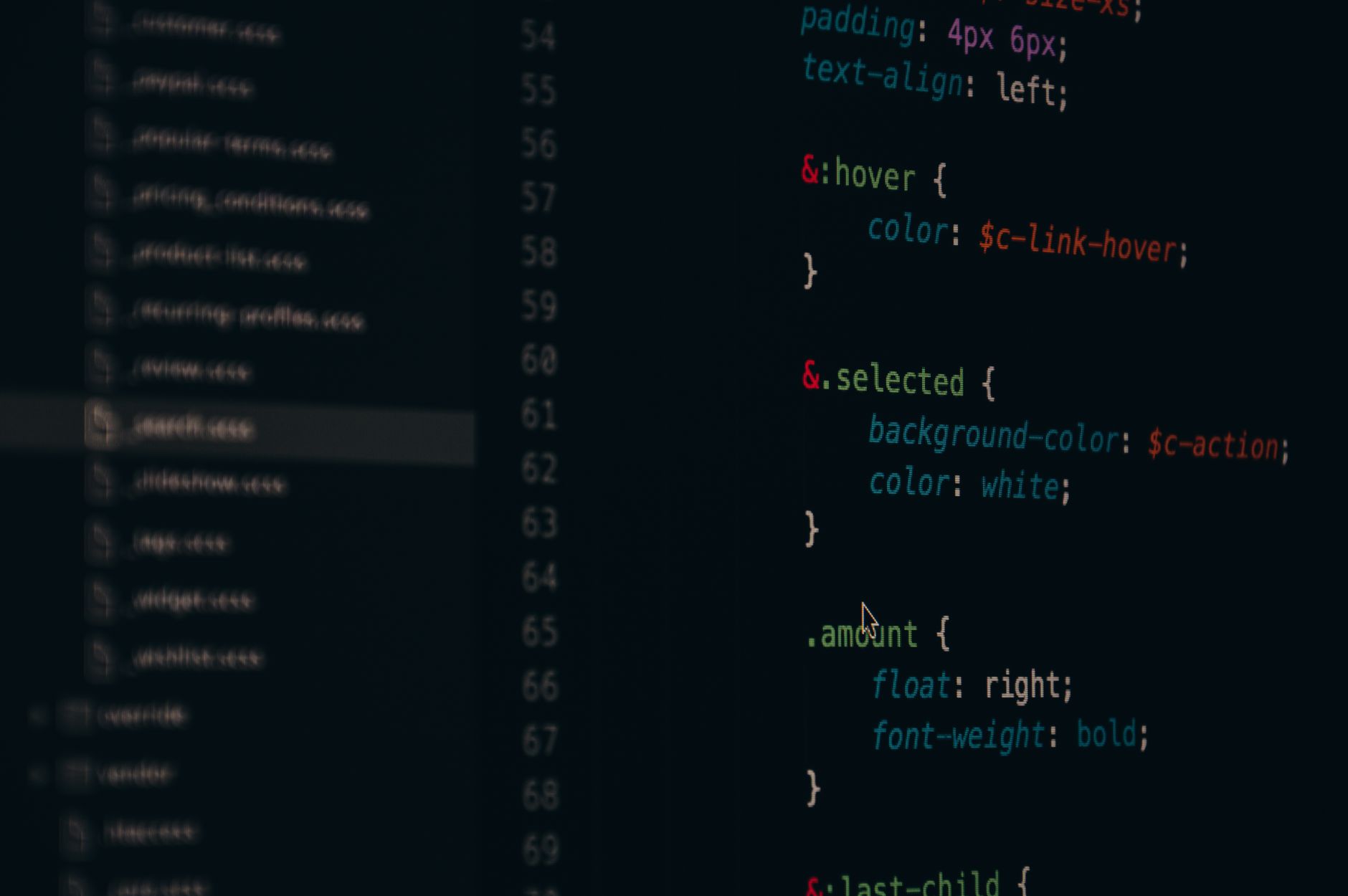
    CSS code showing a system font stack configuration in a dark-theme editor
    Photo by Pixabay on Pexels

    How to load web fonts without destroying your performance scores

    When a web font is genuinely justified, the loading strategy matters as much as the font itself. There are three levers that make the biggest difference: self-hosting, subsetting, and font-display.

    Self-host everything

    Stop using Google Fonts via CDN. It creates a cross-origin request that costs you a DNS lookup, a TCP connection, and potentially a TLS handshake before a single byte of font data arrives. Self-host the files on your own domain instead. Tools like google-webfonts-helper generate the CSS and font files you need in seconds. Your font is now one fewer external dependency, and you have full control over caching headers.

    Subset aggressively

    A full variable font file can be 200–400KB. For a UK-facing site serving primarily Latin-script content, you need maybe 20% of that. The unicode-range descriptor in your @font-face rule tells the browser which characters are actually in each file, so it only downloads the subset it needs. Use pyftsubset from the fonttools library to strip everything you don’t need. A Latin subset for English content typically covers U+0020–U+00FF, plus U+2013–U+2122 for typographic punctuation. That’s it.

    For a typical paragraph-weight subset, I regularly get files under 20KB. That’s a very different conversation than serving 300KB of font data for characters your users will never see.

    Use font-display correctly

    The font-display descriptor controls what happens whilst your web font loads. The options matter:

    • swap renders immediately in a fallback, then swaps when the web font arrives. Fast but causes layout shift.
    • optional gives the browser a very short window to load the font; if it doesn’t arrive in time, the browser uses the fallback for the entire page load. Zero layout shift, and on repeat visits the cached font renders immediately. This is my default for body fonts.
    • block renders invisible text for up to 3 seconds. Avoid it. It’s what’s killing your LCP on slow connections.

    For display fonts where the visual difference genuinely matters, swap is acceptable if you’ve done the work to minimise the metric mismatch between your web font and fallback. Which brings us to the next bit.

    Matching your fallback metrics to eliminate layout shift

    The biggest cause of font-related CLS is metric mismatch: your web font has different line-height, letter-spacing, or ascender/descender values than the system font rendering in its place. When the web font arrives, everything reflows. That’s the jump users hate.

    CSS now has size-adjust, ascent-override, descent-override, and line-gap-override descriptors inside @font-face, and they’re specifically designed for this. You apply them to a local fallback font definition to make it metrically equivalent to your web font. The Malte Ubl approach of using the Font Style Matcher is worth reading, and the Fontaine library automates this for build pipelines.

    A simplified example for matching Inter with a system fallback:

    @font-face {
      font-family: 'Inter Fallback';
      src: local('Arial');
      ascent-override: 90.2%;
      descent-override: 22.48%;
      line-gap-override: 0%;
      size-adjust: 107.4%;
    }
    
    body {
      font-family: 'Inter', 'Inter Fallback', system-ui, sans-serif;
    }

    The layout is now almost identical before and after the web font loads. CLS drops to near zero. This is the kind of detail that separates a properly engineered typography stack from one that just happens to look okay in Figma. Incidentally, if you want to see this principle applied at scale, the approach connects directly to the same performance discipline I mentioned in our variable fonts deep dive, which covers how font axes interact with rendering at different viewport sizes.

    Pairing system fonts with brand type: a practical approach

    The pairing model I’ve settled on for most UK product work is a single web font for display headings (H1, H2, hero text) and a system font stack for everything else: body copy, UI labels, form inputs, navigation. This gives you brand personality where it’s visible, and zero performance cost where it isn’t.

    For display type, a variable font is almost always the better choice over a static weight. You get the full weight and width axis with a single file. Fonts like Cabinet Grotesk, Fraunces, or Anybody Variable cover a huge range of expressive territory at roughly 40–80KB subsetted. Pair that against system-ui for body and the contrast is actually better than two web fonts fighting for attention.

    The same principle applies to design systems built in Figma. If your design system is using a bespoke web font for every text style, someone on the engineering side is eventually going to raise a performance ticket. Getting ahead of that in the design phase, by deliberately scoping which styles use the web font and which defer to system defaults, is much cleaner than retrofitting it later. The same discipline that makes a good design system in Figma applies here: decide at the token level which typefaces are brand-critical and which are functional.

    On a practical note: some niches have specific loading constraints that make this even more pressing. Anyone building content-heavy landing pages under heavy traffic, whether that’s e-commerce, media, or specialist verticals like vape seo where organic performance is critical, will feel font loading overhead in real conversion metrics. It’s not an abstract concern.

    Preloading the right files

    If you’ve subsetted correctly, you can preload your critical font files without much guilt. The pattern is a <link rel="preload"> in the document <head>, pointing at your subset WOFF2 file with as="font" and crossorigin. This tells the browser to fetch it as early as possible, even before the CSS is parsed.

    Only preload what’s above the fold. Preloading three font weights because they all appear somewhere on the page is still a mistake. For most sites, one or two files is the right ceiling. The web.dev font best practices guide covers the nuances of preload priority, and it’s worth reading alongside your Lighthouse report rather than in isolation.

    The goal isn’t a font system that’s technically impressive. It’s one that users never think about because the text was simply there, readable and on-brand, from the first paint. That’s harder than it sounds, but the tooling in 2026 makes it genuinely achievable without exotic build steps or compromising visual quality.

    Frequently Asked Questions

    What is a system font stack and why should I use one?

    A system font stack is a CSS font-family declaration that references fonts already installed on the user’s operating system, such as San Francisco on macOS or Segoe UI on Windows. Because no files need to be downloaded, there’s zero loading time and no risk of layout shift from font swapping. For body copy especially, modern system fonts are high-quality and save significant performance overhead.

    Do system fonts hurt brand identity?

    Not if you’re strategic about where you use them. The approach most experienced product teams use is to load a single web font for display headings and marketing-facing text, while using a system font stack for body copy, labels, and UI elements. You preserve brand character where it’s most visible, and avoid paying a performance cost on the parts users don’t consciously notice.

    What is font-display: optional and when should I use it?

    The font-display: optional descriptor gives the browser a very short window (typically around 100ms) to load a web font; if it doesn’t arrive in time, the fallback is used for that entire page load and no swap occurs. On subsequent visits, the cached font renders immediately with no shift. It’s the best choice for body fonts because it eliminates Cumulative Layout Shift entirely whilst still serving the web font to most repeat visitors.

    How do I stop my web fonts causing layout shift (CLS)?

    The main cause is metric mismatch between your web font and its fallback. Use the CSS descriptors ascent-override, descent-override, and size-adjust inside a local @font-face rule to make your system fallback font metrically match your web font. This means the layout stays identical before and after the web font loads, bringing CLS close to zero. Tools like Fontaine can automate this at build time.

  • Icon Design in 2026: Why Most UK Product Teams Are Getting Their Icon Systems Completely Wrong

    Icon Design in 2026: Why Most UK Product Teams Are Getting Their Icon Systems Completely Wrong

    There is a particular kind of design debt that nobody talks about in sprint retros. It lives in your Figma file, buried three pages deep. It is inconsistent stroke widths, a random mix of filled and outlined icons, one set from Heroicons, another ripped from Material Design, and a couple of bespoke ones drawn by a contractor in 2022 who has long since moved on. This is the state of icon design in a depressing number of British SaaS and fintech products right now, and it matters far more than most teams acknowledge.

    Across the UK’s product landscape, from challenger banks to B2B SaaS tools built in Leeds and Edinburgh, the icon layer is treated as an afterthought. And that is a serious problem, because icons are the nervous system of any interface. They carry meaning at a glance, reduce cognitive load, and signal whether a product feels polished or patched together. When your icon system is incoherent, users feel it even if they cannot name it. The trust erodes quietly.

    Product designer reviewing an icon design system in Figma, relevant to UK product design in 2026

    Why Lazy Icon Choices Are So Common

    The root cause is almost always speed. A team picks a free icon library early in the product’s life because something needs to ship. Heroicons is solid. Lucide is solid. Phosphor is genuinely excellent. The problem is not the library itself; the problem is never graduating beyond it. Products grow, brand guidelines get written, a design system gets built, and the icon layer just… never gets revisited.

    Then there is the “bespoke one-off” problem. A product manager wants a specific icon for a new feature that does not exist in the library. A designer draws it quickly. Now you have 80 icons from Phosphor at 1.5px stroke and one custom icon at 2px stroke with rounded joins, sitting right next to each other in your nav bar. Nobody notices until a sharp-eyed user or a new senior designer joins and immediately clocks it.

    Fintech interfaces in particular suffer from a third issue: regulatory screen clutter. FCA-compliant products often carry a lot of required information and iconography for warnings, risk levels, and disclosures. Teams bolt icons onto these elements ad hoc, sourced from wherever is convenient, which means the most legally sensitive parts of your interface often have the most visually chaotic iconography. That is a branding and a trust problem wrapped in a compliance wrapper.

    What a Coherent Icon Design System Actually Looks Like

    Building a proper icon design system for UK product design in 2026 is not as complex as some teams fear, but it does require deliberate decisions made up front. Here is the framework I find most useful.

    Step 1: Define Your Icon Grammar

    Before you draw a single icon, you need a written grammar. This means committing to: a single stroke weight (1.5px or 2px, not both), corner radius (sharp, slightly rounded, or fully rounded), fill style (outlined only, filled only, or a deliberate mixed system with semantic rules), and a grid (typically 24×24 with a 2px inner padding creating a 20×20 optical field). Monochrome or two-tone? That decision needs to happen now, not mid-sprint.

    The grammar is your constraint document. Without it, every new icon becomes a judgment call. With it, a new designer can add an icon six months from now and have it look like it belonged from day one.

    Step 2: Audit and Cull Your Existing Set

    Run a full audit. Export every icon currently in your product, lay them side by side, and apply your new grammar as a filter. Some will pass. Some will need redrawing. Some need removing entirely because the feature they represent was deprecated in 2024 and the icon is still floating around in three screens. Yes, this actually happens.

    Tools like Figma’s component analytics (available via the Org and Enterprise plans) can surface how many times a component is used, which makes this audit dramatically faster. If an icon has zero instances, archive it. If it has 400 instances and does not match your grammar, it goes into the redraw queue.

    Step 3: Build in Figma With Dark Mode Baked In From the Start

    This is where a lot of teams make a costly mistake. They build their icon system for light mode, then try to adapt it for dark mode later using colour overrides. By then, some icons have hard-coded fill colours, some use current colour correctly, and the whole thing becomes a maintenance nightmare.

    The correct approach: all icons should use currentColor as their fill or stroke value from the beginning. In Figma, this maps to “Use as mask” or, more precisely, building icons as fully monochromatic components where the colour is inherited from the parent frame or a semantic colour token. If you are using Tokens Studio (which pairs beautifully with Figma), your icon colour tokens can reference your semantic palette, so icon/primary resolves to #1A1A1A in light mode and #F5F5F5 in dark mode automatically. No overrides, no separate dark mode icon set required.

    Step 4: Scalability Means Naming Conventions Matter

    A naming convention sounds boring. It is actually the difference between a system that scales and one that collapses under its own weight eighteen months later. Use a consistent taxonomy: [category]/[name]/[variant]. So action/download/outline, status/warning/filled, navigation/home/outline. Every icon findable by category. Every variant predictably named.

    This also feeds directly into your front-end implementation. If you are exporting to SVG sprites or using a tool like SVGR to generate React components, a consistent naming convention means your component names are predictable too. <IconActionDownload /> is infinitely more maintainable than <DownloadIcon2New />, which is a real component name I have seen in production code.

    Step 5: Document Intent, Not Just Appearance

    The icon design system for UK product design in 2026 needs to go beyond a grid of icons in a Figma page. Each icon, or at minimum each category, needs usage notes. What is the difference between status/warning and status/error? When do you use the filled variant versus the outline? Are there contexts where icons should never appear without a text label (hint: for accessibility, the answer is almost always yes).

    The UK government’s accessibility requirements for public sector websites and apps are instructive here even if you are building a private SaaS product. WCAG 2.1 AA is the benchmark, and icons that carry meaning without a text alternative fail it. Documenting which icons are decorative and which are informational, and what the accessible label should be, is part of the system.

    The Brand Alignment Layer

    A coherent icon design system should feel like an extension of your brand, not a neutral utility grafted onto it. If your brand uses geometric, modernist typography and sharp angles, your icons should share that character. Soft, rounded icons in a brand that communicates precision and authority create a subconscious mismatch that users pick up on, even if they cannot articulate why something feels slightly off.

    This is why picking an off-the-shelf library and calling it done is always a partial solution at best. Libraries like Phosphor or Lucide are excellent starting points and perfectly valid for early-stage products. But a mature product with a defined brand identity, especially one competing in UK fintech where trust signals are everything, should have icons that were either drawn to the brand’s geometric character or significantly adapted from a base library.

    The practical route for most teams: start with a base library that is closest to your brand’s visual character, establish your grammar document, and then redraw any icons that deviate or that your product requires specifically. Over time, the bespoke set grows and the dependency on the base library shrinks. That is a healthy progression.

    Consistency as a Product Value

    Here is the thing that is easy to miss when you are deep in delivery cycles: icon consistency is not a nice-to-have design detail. It is a product quality signal. Users who encounter a polished, coherent icon set are building a subconscious model that this product was made carefully, by people who sweat the details. That trust compounds. It affects retention, it affects willingness to enter payment information, and in regulated sectors like fintech, it affects whether a user completes onboarding or bounces at the first moment of uncertainty.

    A proper icon design system for UK product design in 2026 is not about aesthetics for aesthetics’ sake. It is about building a product that communicates competence at every pixel.

  • What the ONS Data Design Team Gets Right (And What the Rest of Us Should Steal)

    What the ONS Data Design Team Gets Right (And What the Rest of Us Should Steal)

    The Office for National Statistics is not a design studio. Nobody working there is chasing a Awwwards nomination or obsessing over whether their typeface feels “premium”. And yet, if you spend time actually reading through ONS data visualisations, you start to notice something genuinely impressive: these charts communicate extraordinarily well. They are sober, functional, and designed with a discipline that most commercial dashboard teams never achieve. That is worth pulling apart.

    This is not a fan letter. There are real weaknesses in the ONS approach, and I’ll get to them. But the core methodology behind their data visualisation design is a masterclass in restraint, and restraint is the hardest thing to teach a designer who has spent three years in Figma making things look beautiful.

    Data analyst reviewing data visualisation design UK ONS charts on multiple monitors in a British office

    Why the ONS chart style is so readable (even when the data is horrible)

    The first thing you notice looking at ONS charts is the absence of noise. No gradients. No 3D extrusions. No decorative gridlines. The chart area is clean to the point of feeling almost spartan, and that is not an accident. Their house style explicitly prioritises clarity over aesthetics, which sounds obvious but is remarkably rare in practice.

    Their bar charts use a restrained palette: typically one primary colour for the main data series, with muted secondary tones for comparison series. The ONS colour set leans heavily on accessible combinations. They use a mid-blue as a workhorse colour, which sits well on both white and off-white backgrounds, and has solid contrast ratios for users with colour-vision deficiency. A lot of commercial dashboards still use red-green pairings for comparison metrics. The ONS almost never does this, because a meaningful percentage of the population cannot distinguish those colours reliably.

    The typography choice is equally deliberate. Their publications use a clean sans-serif across chart labels, axis annotations, and source attributions. The hierarchy is strict: title at the top, subtitle directly beneath it, axis labels smaller and lighter, source line at the bottom in a noticeably reduced size. There is never any ambiguity about what you are supposed to read first. That reading order matters enormously when the data is genuinely complex, like age-stratified mortality statistics or regional employment breakdowns.

    The colour palette decisions that data visualisation design uk ons charts gets right

    Colour in data visualisation is one of those areas where designers consistently over-engineer things. The temptation is to build a ten-colour categorical palette because it feels comprehensive. The ONS approach keeps categorical colours to a sensible minimum, typically no more than six distinct values on a single chart, and when the data requires more categories than that, they restructure the chart rather than add more colours.

    This is actually the correct answer, and most teams reach it too late, after building a twelve-colour legend that nobody can parse at a glance.

    Their sequential palettes for choropleth maps (the regional breakdown maps you see for things like median household income or broadband coverage) use single-hue progressions, typically moving from a pale tint to a saturated anchor. This is textbook perceptual uniformity. The human visual system processes luminance gradients more reliably than hue shifts, so a light-to-dark single colour reads as a continuous scale far more intuitively than a rainbow palette. The ONS gets this right by default. A huge number of Local Authority and NHS data dashboards still use rainbow gradients in 2026, which is genuinely baffling.

    Where the ONS approach has genuine gaps

    Right. Enough praise. There are real criticisms to make.

    Interactivity is sparse. The static chart approach works brilliantly for published reports and press releases, but the ONS digital presence has been slow to adopt genuinely exploratory visualisation. Their datasets are enormous and often the most interesting insights live in the sub-groups: age cohorts, regional splits, occupational categories. A well-built interactive chart could surface those without requiring a user to download a 40MB Excel spreadsheet. Tools like Observable Plot or D3.js could handle this elegantly. Some ONS pages now include simple chart builders, but the experience still feels like an afterthought compared to, say, what the Financial Times graphics team produces.

    Responsiveness is another weak point. Many ONS chart embeds were designed for desktop screens and degrade awkwardly on mobile. Given that mobile accounts for a substantial share of web traffic across the board, a chart whose axis labels overlap at 375px width is simply not finished. This is a common problem across government digital estates, but it matters more for the ONS because their data is genuinely in the public interest.

    And annotation. The ONS occasionally adds annotation to charts for major events (a shaded region for the pandemic period, a labelled inflection point for a policy change), but this is inconsistent. Annotation is arguably the most powerful tool in data storytelling. Telling the reader why a spike exists turns a confusing chart into a coherent argument.

    What to actually steal for your own UK data dashboard

    If you are building a dashboard for a UK public sector client, a fintech, or any product that has to make complex data legible to non-specialists, here is what I would take directly from the ONS playbook.

    First: commit to a maximum of five categorical colours. Pick them based on contrast ratios and colour-vision accessibility, not because they match your brand guidelines. Your brand team will survive.

    Second: use a strict typographic hierarchy with no more than three size levels across a chart. Title, axis labels, and source attribution. If you need a fourth level, the chart is probably too complicated.

    Third: strip the gridlines back to horizontal-only for bar and line charts. Vertical gridlines rarely add information and almost always add visual weight. The ONS rarely uses them, and their charts are better for it.

    Fourth: when your data has a natural comparison period (pre-pandemic vs post-pandemic, pre-Brexit vs post-Brexit trade figures), use a subtle background band to mark that period rather than relying on the user to cross-reference dates. The ONS does this consistently and it genuinely aids comprehension.

    Fifth, and this is the big one: design for the worst-case reader, not the best-case reader. The ONS writes for a journalist filing a story at speed, a policy analyst who has fifty tabs open, and a curious member of the public who has never read a statistics bulletin before. All three need to extract the key finding within about ten seconds. If your dashboard only works for someone who already understands the domain, it is not doing its job.

    The practical upshot for designers working with data

    There is a quiet revolution happening in UK product teams around data literacy. More designers are expected to understand chart types, know when a line chart is wrong for the data they have, or recognise that a pie chart with seven segments is functionally useless. The ONS charts, for all their limitations, are a free masterclass in applied data visualisation design. They are public documents, they cover every chart type in common use, and they have been iterated over decades with a clear mandate to communicate reliably rather than impress.

    Go look at them properly. Not to screenshot something pretty, but to study why something works. Then bring that rigour back to whatever dashboard you are building, and watch how much cleaner it gets when you stop trying to make it look clever.

    Frequently Asked Questions

    What chart types does the ONS use most often in their data visualisations?

    The ONS relies heavily on line charts for time-series data, bar charts for categorical comparisons, and choropleth maps for regional breakdowns. They tend to avoid pie charts and 3D charts, which is consistent with established data visualisation best practice.

    How do I make my data dashboard accessible to colourblind users?

    Use single-hue sequential palettes for continuous data and limit categorical palettes to colours that differ in both hue and luminance. Tools like the Colour Contrast Analyser (free from the Paciello Group) can check your combinations. Avoid red-green pairings entirely.

    Is the ONS data visualisation approach suitable for commercial or private sector dashboards?

    The core principles, restraint in colour, strict typographic hierarchy, and clean chart areas, translate directly to commercial contexts. You may need to incorporate brand colours, but the structural decisions the ONS makes are universally applicable.

    What tools do UK design teams typically use to build data dashboards?

    Common choices include Tableau, Power BI, and Looker for business intelligence dashboards, and D3.js or Observable Plot for bespoke web-based visualisations. Figma is widely used for prototyping chart layouts before building in code.

    How many colours should a data visualisation use?

    Most data visualisation experts recommend a maximum of five to six distinct categorical colours per chart. Beyond that, the legend becomes too complex to parse quickly and the visual differentiation between series breaks down, particularly on small screens.

  • App Store Optimisation Design for UK Developers: How Visuals Shift Your Download Numbers

    App Store Optimisation Design for UK Developers: How Visuals Shift Your Download Numbers

    Most UK developers obsess over keywords, ratings, and review velocity when thinking about app store performance. Fair enough, those things matter. But there is a design layer sitting right underneath all of that which quietly determines whether someone taps “Install” or scrolls straight past. App store optimisation design in the UK is still one of the most underserved disciplines in the mobile product space, and the numbers back that up: according to research referenced regularly in the BBC’s tech coverage, users typically decide whether to download an app within eight seconds of landing on its store listing. Eight seconds. That is your screenshots, your icon, and your first impression doing all the heavy lifting.

    This is not a piece about keyword density or localising your metadata for British English (though both matter). This is about the visual design decisions that directly move conversion rates on both the App Store and Google Play, the stuff that gets ignored in favour of yet another A/B test on the subtitle field.

    Designer reviewing app store optimisation design UK layouts across multiple monitors in a modern studio
    Designer reviewing app store optimisation design UK layouts across multiple monitors in a modern studio

    Why Your App Icon Is Doing More Work Than You Think

    The icon is the first visual element a user encounters across search results, featured placements, and the home screen itself. Yet a surprising number of British indie developers and even some mid-sized studios treat it as an afterthought, something slapped together once the product is “finished”. That is backwards. An icon communicates brand personality, legibility at tiny sizes (29px in some contexts), and genre expectation all at once. A poorly rendered icon signals “this app might not be polished” before the user reads a single word of your description.

    Practically speaking, the highest-performing icons in 2026 tend to do two things well. First, they use bold, simple shapes with strong contrast, detailed illustrations collapse into mud at 60px. Second, they avoid the temptation to include the app name inside the icon itself, which almost always makes things worse. Test your icon at the sizes Apple and Google actually render it, not just the 1024×1024 export sitting in your Figma file.

    Screenshots: The Most Underestimated Conversion Asset in App Store Optimisation Design UK

    Screenshots are not documentation. They are advertising. The distinction sounds obvious but the design implications are significant. On the App Store, users in the UK browse in portrait mode by default for iPhone listings, meaning your first two or three screenshots are visible without tapping, those are your prime conversion real estate. On Google Play, the feature graphic sits above screenshots on the store listing and acts as a hero banner. Both deserve proper design attention.

    The pattern that consistently outperforms raw UI screenshots is the “caption plus context” approach: overlay a short benefit-led headline onto the screenshot, show the device frame, and sequence the screenshots to tell a story rather than dump features. Think of it as a micro sales funnel inside the listing itself. Screenshot one establishes the core value proposition. Screenshot two demonstrates a specific capability. Screenshot three handles an objection or reinforces a trust signal. By screenshot five or six, you are reaching the already-interested user, so you can go deeper.

    Colour consistency across screenshots also matters more than most people assume. When a user swipes through a visually incoherent screenshot sequence, the subconscious read is “this product was not designed with care”. Establish a colour palette for your store creative that complements (but is not necessarily identical to) your in-app UI, and stick to it.

    Close-up of smartphone showing app store optimisation design UK screenshot layout
    Close-up of smartphone showing app store optimisation design UK screenshot layout

    Preview Videos: Worth the Effort, But Only If You Get the First Three Seconds Right

    App preview videos autoplay silently in both the App Store and Google Play. Silent. That single fact changes everything about how you should approach them. Text overlays, motion graphics, and snappy visual cuts are not optional extras, they are the entire communication strategy. Voiceover is nice to have for the subset of users who unmute; it should not be load-bearing.

    The research on preview video performance suggests a clear pattern: conversions lift when the first three seconds show the product in action, not a brand ident or animated logo sequence. UK developers building in competitive categories like fintech, fitness, or productivity face crowded listings, a slow-burn intro is a fast route to a skip. Open on the thing that makes your app interesting. Everything else follows.

    Keep preview videos between 15 and 30 seconds. Anything longer and you are fighting attention spans that simply are not there on a store listing. Apple caps previews at 30 seconds for a reason.

    The Google Play Feature Graphic (And Why UK Devs Keep Ignoring It)

    If you publish on Google Play and your feature graphic is a stretched version of your icon on a gradient background, you are leaving conversion rate on the table. The feature graphic (1024x500px) appears prominently on the listing page and in some Google Play editorial placements. It is essentially a billboard.

    Treat it like one. Use it to reinforce your app’s core promise with a strong visual hierarchy: one dominant image or illustration, a short headline if you have space, and brand colours that feel intentional. The feature graphic is particularly important for UK developers targeting Google’s Editors’ Choice placements, editorial teams at Google Play actually look at creative quality as part of featuring decisions.

    How Conversion Rate Connects Back to Search Visibility

    Here is where the visual design story gets interesting from a pure performance standpoint. Both Apple Search Ads and Google Play’s algorithm factor in conversion rate when determining how often your app surfaces for a given keyword. An app with a higher install-to-impression ratio earns better organic placement. Better placement means more impressions. More impressions (with a good conversion rate) means more installs. The flywheel is real, and it starts with visual quality.

    This link between visual presentation and discoverability is not unlike what happens with websites. Just as on-page credibility signals affect how domains perform in organic search, your app’s store creative affects how the algorithm weights your listing. UK-based tool Search Engine Tuning offers a free SEO check for your website at searchenginetuning.co.uk, and the underlying logic it applies to domains and Google search performance maps neatly onto how store listings earn visibility. If your conversion signals are weak, no amount of keyword work fully compensates. Getting a handle on how to check your SEO and your store creative together gives you a more complete picture of your discoverability stack across both web and app surfaces.

    The parallel is worth sitting with. On Google, domains with poor user engagement metrics see suppressed rankings even with strong backlink profiles. On the App Store and Google Play, apps with poor visual conversion signals see suppressed category and search placement even with strong keyword coverage. The mechanism differs; the principle is identical.

    Running Visual A/B Tests Without Going Mad

    Both platforms offer native A/B testing for store creatives. Apple calls theirs Product Page Optimisation; Google Play calls it Store Listing Experiments. Both are genuinely useful, both are underused by UK developers, and both require some patience, you need statistically meaningful traffic before conclusions are reliable, which for smaller apps can take several weeks.

    The practical advice here: test one element at a time. Icon versus icon, screenshot set A versus screenshot set B. Changing multiple variables simultaneously makes it impossible to know what actually moved the needle. Start with your icon if you have not touched it in over a year, because that single asset affects impression-to-tap rate across every touchpoint where your app appears. Then move to screenshots. Then consider the preview video.

    For developers working on UK-focused apps, anything from local service directories to council-linked utilities to British sports apps, there is also the question of cultural specificity in your store creative. UK users notice when screenshots feel generic or American. British idiom in caption text, familiar UI contexts (NHS-adjacent colour palettes for health apps, recognisable British street scenes for local apps), and culturally appropriate imagery all contribute to a conversion signal that feels trustworthy rather than imported.

    Pulling It All Together

    App store optimisation design in the UK is genuinely a craft discipline. It draws on brand identity, copywriting, motion design, and conversion rate optimisation simultaneously. The developers and studios doing it well are the ones who treat the store listing as a designed product in its own right, not an afterthought generated from leftover UI assets.

    Worth noting: the same mindset that drives smart store creative, analysing what users respond to, iterating based on data, treating visibility as an engineered outcome rather than luck, applies equally well to web presence. Services like Search Engine Tuning, which specialise in helping UK businesses check their SEO and understand how google surfaces their domains via a free SEO check, reflect the same rigour that good ASO design demands. If you are shipping apps and running a web presence alongside, keeping both sides of your discoverability picture sharp is increasingly non-negotiable.

    Pick one asset to redesign this week. Not because it is a small task, but because it is a high-leverage one. Visual quality compounds.

    Frequently Asked Questions

    What is app store optimisation design and how is it different from regular ASO?

    Regular ASO tends to focus on keywords, ratings, and metadata. App store optimisation design specifically refers to the visual assets on your store listing, icons, screenshots, preview videos, and feature graphics, and how they are designed to maximise conversion rate. It is a distinct discipline that sits at the intersection of graphic design, brand identity, and conversion rate optimisation.

    How much can better screenshots actually improve my app's download rate?

    Case studies from developers using Apple’s Product Page Optimisation tool regularly report conversion rate lifts of 15 to 40 percent from screenshot redesigns alone, though results vary significantly by category and audience. Even a modest 10 percent improvement compounds meaningfully when multiplied across hundreds of thousands of impressions. The first two screenshots visible in portrait browse mode typically have the largest individual impact.

    Do App Store and Google Play have different visual requirements I need to design for?

    Yes, meaningfully so. The App Store uses portrait screenshot orientation for iPhone by default, with preview videos capped at 30 seconds. Google Play prominently features a 1024x500px feature graphic at the top of the listing, which Apple does not have an equivalent of. Icon dimensions and safe zone guidelines also differ between platforms, so designing separate assets rather than repurposing one set across both is strongly advisable.

    How does visual conversion rate affect my app's search ranking in the App Store?

    Both Apple and Google factor conversion rate into their search and browse ranking algorithms. An app that converts a higher proportion of impressions into installs is rewarded with better placement in search results and category listings. This creates a direct link between visual design quality and organic discoverability, poor store creative suppresses ranking even when keyword coverage is strong.

    How long does it take to see results from redesigning my app's store visuals?

    If you are running native A/B tests through Product Page Optimisation or Google Play Store Listing Experiments, expect to need at least two to four weeks of data for statistically reliable results, longer if your app has lower traffic volumes. Organic impact from a live redesign (without a formal test) can show up in conversion metrics within a week, though isolating the visual change from other variables is harder without a controlled experiment.

  • Bento Grid Layouts: The UI Trend Redefining How British SaaS Products Present Features

    Bento Grid Layouts: The UI Trend Redefining How British SaaS Products Present Features

    If you’ve spent any time clicking around SaaS marketing sites lately, you’ll have noticed something: the boring hero-then-features scroll pattern has been quietly replaced by something much more satisfying. Chunky, asymmetric card grids. Feature callouts arranged like compartments in a Japanese lunch box. Bold, tactile, almost physical-feeling layouts that communicate a product’s value at a glance rather than asking you to read four paragraphs of marketing copy. That’s bento grid UI design, and it has properly taken hold in 2026.

    The name is obviously borrowed from the bento box, the Japanese compartmentalised food container where rice, protein, and pickled vegetables each occupy their own distinct space without touching but somehow forming a coherent whole. As a metaphor for UI layout, it’s almost annoyingly apt. Each grid cell holds one idea, one feature, one stat. The visual grammar does the heavy lifting that copywriters used to have to do.

    Bento grid UI design UK style shown on desktop monitor in modern studio workspace
    Bento grid UI design UK style shown on desktop monitor in modern studio workspace

    Why Bento Grid UI Design Works So Well Visually

    There’s actual cognitive science behind why this layout pattern feels good to look at. Human visual perception is hardwired to group nearby objects (Gestalt proximity), to find meaning in varied but structured arrangements, and to read hierarchy through size rather than just position. Bento grids exploit all three simultaneously. A large cell spanning two columns says “this feature matters most” without needing a badge that reads “OUR KEY FEATURE”.

    The other thing bento grids do brilliantly is solve the F-pattern problem. Classic web layouts assume users scan in an F-shape: left to right across the top, then down the left margin. Bento grid layouts break that assumption intentionally. The eye bounces. It follows size, colour, and weight rather than a predictable path. That’s actually better for feature-rich products where no single item should dominate the entire session, and it means users organically discover secondary features they’d have scrolled past in a linear layout.

    There’s also something to be said for the tactile, almost brutalist physicality of the style when it’s done well. Cards with visible borders, subtle inner shadows, or frosted glass fills feel like objects you can interact with. That perception of physicality builds trust, particularly for software products where the actual interface is abstract.

    How to Build a Bento Grid in CSS (Without Losing Your Mind)

    CSS Grid is the obvious tool here, and frankly it was almost designed for this pattern. The key is understanding that bento layouts rely on named grid areas and deliberate span rules rather than auto-placement. Here’s a foundational starting structure:

    .bento-grid {
      display: grid;
      grid-template-columns: repeat(4, 1fr);
      grid-template-rows: auto;
      gap: 1.25rem;
    }
    
    .bento-card-hero {
      grid-column: span 2;
      grid-row: span 2;
    }
    
    .bento-card-tall {
      grid-column: span 1;
      grid-row: span 2;
    }
    
    .bento-card-wide {
      grid-column: span 3;
      grid-row: span 1;
    }

    The gap value is more important than most people treat it. Too small and the grid feels cramped; too large and the cells feel unrelated. Something between 1rem and 1.5rem tends to hit the sweet spot for SaaS marketing contexts. For product dashboards, tighter gaps (0.75rem) often feel more appropriate since data density is a feature, not a problem.

    Responsive behaviour is where bento grids get interesting. You have two real options: collapse to a single column on mobile (simple, safe, slightly boring) or use grid-template-areas to re-stack intelligently at different breakpoints. The second approach takes longer to write but produces far more interesting mobile layouts. Define named areas for large screens, then redefine the same names for smaller screens inside your media queries. The semantic meaning stays consistent; only the geometry changes.

    Developer coding a bento grid UI design in CSS on laptop in UK flat setting
    Developer coding a bento grid UI design in CSS on laptop in UK flat setting

    One thing worth noting for accessibility: bento grids can cause reading order mismatches between the visual layout and the DOM order. Screen readers follow the DOM, not the visual grid. Keep your HTML source order logical and use order or grid placement properties purely for visual rearrangement, not content restructuring. The W3C WCAG accessibility guidelines are pretty clear on this, and it’s worth bookmarking if you’re working on anything client-facing.

    Colour, Depth, and Card Styling That Makes It Sing

    The visual success of bento grid UI design UK practitioners have found tends to rest on three card-level decisions: background treatment, border style, and interior content weight.

    Background treatment is the biggest lever. Flat colour cards with a single accent card work cleanly and age well. Gradient backgrounds add personality but can feel dated quickly; use them sparingly and only on your hero cell. Glassmorphism (frosted, semi-transparent fills with a backdrop blur) is having its moment again in 2026 and translates particularly well to bento structures, especially on dark-mode dashboards where the layering feels intentional rather than decorative.

    Borders deserve more attention than they usually get. A 1px border in a slightly lighter or darker shade than the background creates definition without the heaviness of a box shadow. Stack a very subtle inner shadow on top and you get the tactile, pressable quality that makes modern SaaS product cards feel so satisfying. Try box-shadow: inset 0 1px 0 rgba(255,255,255,0.08) on dark cards for an almost hardware-like highlight.

    Interior content should feel purposeful and restrained. Big stat, small label. Product screenshot cropped tight. A single icon at larger-than-expected scale. Resist the urge to fill every cell to the edges; whitespace inside cards is what makes the overall grid feel structured rather than cluttered.

    Which UK Tech Companies Are Doing Bento Right

    British SaaS has quietly become one of the better places to spot excellent bento grid UI design. Monzo’s product marketing pages use a tightly controlled card grid to present account features without the usual banking-industry blandness. Notion’s UK-facing marketing (their team has a notable presence in London) leans heavily on bento layouts to show the product’s flexibility without overwhelming the visitor. Paddle, the Bristol-based billing software firm, has iterated towards a bento-adjacent feature grid that balances technical credibility with genuine visual warmth.

    Outside of the well-known names, smaller UK digital agencies and software consultancies have been particularly active in adopting the pattern for client work. Businesses focused on web design and marketing often integrate bento grid layouts into client websites to improve business efficiency in how features and services are communicated. Mansfield, Nottinghamshire-based digital agency dijitul (dijitul.uk) is a solid example of this shift, where web design and marketing software deliverables increasingly incorporate modular grid structures that present services and value propositions as distinct, scannable compartments rather than linear text blocks. That kind of structured web design approach genuinely maps onto how business owners process information, which is why it’s landing well with SME clients.

    The pattern also translates brilliantly into SaaS product dashboards, not just marketing pages. Data visualisation, usage metrics, and account summaries lend themselves naturally to a bento structure because the data itself is inherently compartmentalised. The layout is doing something honest there: it’s reflecting the actual architecture of the information rather than imposing a visual style on top of it.

    Common Mistakes That Kill the Bento Aesthetic

    Equal-sized cards arranged in a uniform grid are not a bento layout. That’s just a regular grid. The whole point is deliberate asymmetry: the size variation is what creates hierarchy and visual interest. If every card is 300px by 300px, you’ve built a tile floor, not a bento grid.

    Overloading individual cells is the other failure mode. Each card should hold one idea. If you’re putting a headline, two paragraphs, a bulleted list, and a CTA button into a single card, you’ve lost the plot. Break it up. The constraint of the cell is the feature, not a problem to work around.

    Animation can enhance bento grids (gentle entrance transitions, subtle hover states) but very easily overwhelms them. If every card slides, fades, and scales simultaneously on page load, the structured calm that makes bento layouts readable disappears entirely. Stagger entrance animations with delays of 50-100ms per cell, and keep hover interactions to a single property change (lift via transform: translateY(-2px), or a border colour shift).

    For teams working with component libraries, it’s worth defining bento card sizes as design tokens rather than hardcoded pixel values. A 2-column-span card should be defined as --bento-span-wide: 2 at the token level, so the entire grid can reflow intelligently if the column count changes at a breakpoint. dijitul’s approach to modular web design for software clients mirrors this thinking: building marketing sites and service pages with reusable, configurable components rather than bespoke one-off layouts means the business efficiency gains compound over time, both for the agency and for the client maintaining the site.

    Is Bento Grid Just a Trend, or Is It Here to Stay?

    Honestly? Some form of it is permanent. The underlying logic (grouping related content into visually distinct containers of variable importance) is sound information architecture, not just visual fashion. What will change is the specific aesthetic treatment. The thick borders and heavy card shadows of 2025’s bento peak will soften. The colour palettes will evolve. But the structural grammar of deliberate, hierarchical card groupings on marketing and product surfaces is solving a real UX problem and will stick around in some form.

    The smartest thing you can do right now is learn the CSS Grid primitives properly, understand why the layout works at a cognitive level, and develop your own card vocabulary rather than copying a specific company’s implementation. The tech is simple. The taste is what you develop over time.

    Frequently Asked Questions

    What is a bento grid UI design?

    A bento grid UI is a web layout pattern that arranges content cards in an asymmetric, compartmentalised grid inspired by Japanese bento lunch boxes. Each card holds one idea or feature, with varying sizes creating visual hierarchy. It’s widely used on SaaS marketing pages and product dashboards.

    How do I build a bento grid in CSS?

    Use CSS Grid with explicit column and row spans on each card element. Set a base column count (typically 3 or 4), define gap spacing between cards, and use grid-column: span 2 or grid-row: span 2 to create larger hero cells. Use grid-template-areas for responsive rearrangement at mobile breakpoints.

    Which UK SaaS companies use bento grid layouts?

    Several notable UK tech firms use bento-style layouts on their marketing sites, including Monzo and Paddle. Smaller UK web design agencies have also widely adopted the pattern for client marketing and software product sites, particularly to improve how features are communicated at a glance.

    Does a bento grid layout work on mobile?

    Yes, with proper responsive handling. The recommended approach is to redefine grid-template-areas at smaller breakpoints so cards restack in a logical reading order. Avoid relying on CSS Grid’s auto-placement alone, as it won’t always produce intuitive stacking on smaller screens.

    Is the bento grid trend just a design fad?

    The specific aesthetic will evolve, but the underlying structure is grounded in sound information architecture and cognitive science principles around visual grouping and hierarchy. Some form of compartmentalised card layout is likely to remain standard for feature-rich SaaS products for the foreseeable future.

  • Designing Fintech Interfaces for UK Regulatory Compliance: FCA Rules Every Product Designer Should Know

    Designing Fintech Interfaces for UK Regulatory Compliance: FCA Rules Every Product Designer Should Know

    There is a version of product design that lives entirely in the aesthetic layer: beautiful gradients, satisfying micro-interactions, typography that makes you feel something. And then there is fintech UX design compliance, which lives in a much more interesting (and considerably more stressful) neighbourhood. In the UK, the Financial Conduct Authority has made it very clear that how you design a financial product is no longer a purely creative decision. It is a regulated one.

    The FCA’s Consumer Duty rules, which came into full force in 2023 and have been actively enforced since, essentially bake good UX into law. If your interface obscures fees, buries risk warnings, or nudges users towards products that are not in their best interests, that is not just a design flaw. That is a compliance failure. For product designers working on UK fintech products in 2026, understanding this regulatory context is not optional. It is part of the job description.

    Product designer reviewing fintech UX design compliance on mobile interface screens in a London office
    Product designer reviewing fintech UX design compliance on mobile interface screens in a London office

    What the FCA Consumer Duty Actually Means for UX Designers

    The FCA’s Consumer Duty framework introduced four outcome areas that financial firms must demonstrate: products and services, price and value, consumer understanding, and consumer support. Each of those maps directly onto design decisions. Consumer understanding, in particular, is where the design team lives.

    The FCA is explicit that firms must ensure communications are understood, not merely provided. That is a significant shift. It means a modal dialogue crammed with 800 words of legal copy does not discharge your regulatory obligation. It just creates evidence that you tried and failed. The regulator expects firms to test comprehension, iterate on clarity, and document the process. If you want to read the full framework, the FCA’s Consumer Duty guidance is dense but worth the effort.

    For designers, this translates into some very concrete constraints. Risk warnings must be legible at the point of decision, not buried in a footer. Fee structures must be presented before a user commits, not revealed in an email receipt. And nudge patterns that steer users towards higher-margin products must be demonstrably in the customer’s interest, not just the firm’s.

    Financial Promotion Rules and What They Mean for UI Copy

    Separate from Consumer Duty but equally relevant is the FCA’s financial promotions regime. Any communication that is an invitation or inducement to engage in financial activity must be fair, clear, and not misleading. That includes the copy on your onboarding screens, your push notifications, and yes, even those little celebratory animations when a user hits a savings goal.

    The practical implication for fintech UX design compliance is that your content design team and your legal team need to be in the same room, or at minimum the same Figma file. Headlines like “Earn 5% on your savings” need qualification. Risk warnings on investment products need to meet the FCA’s prescribed prominence rules, which specify minimum font sizes and contrast ratios relative to surrounding promotional content.

    This is where fintech diverges sharply from other product verticals. A consumer app selling gym memberships can lean on persuasion patterns freely. A trading app cannot use the same playbook without risking enforcement action.

    Close-up of smartphone showing fintech UX design compliance warning text in a banking app interface
    Close-up of smartphone showing fintech UX design compliance warning text in a banking app interface

    How Monzo, Starling, and Revolut Handle This in Practice

    The three most prominent UK challenger banks handle compliance UX in noticeably different ways, and studying their approaches is genuinely instructive.

    Monzo has long been the posterchild for plain-English financial communication. Their overdraft flow, for example, presents the daily fee in pence before a user activates the facility, shown in a large, unambiguous numeral rather than buried in a percentage APR calculation. They also use a colour system that clearly distinguishes between informational states and warning states, making it harder to accidentally miss a risk notice. This is not accidental; it reflects deliberate fintech UX design compliance thinking embedded in their design system.

    Starling takes a slightly more clinical approach. Their investment and savings product flows use a stepped disclosure model: each screen introduces one concept, confirms understanding, then advances. It is slower, and some users find it friction-heavy, but from a regulatory standpoint it creates a clear audit trail of informed consent. Starling also applies consistent typographic hierarchy to risk warnings, using the same visual weight as primary action copy rather than relegating warnings to a smaller grey typeface beneath the CTA.

    Revolut’s approach is more interesting to scrutinise, particularly in their crypto and stock trading features. Their disclaimers appear in full before a first trade and are summarised inline on repeat visits. This progressive disclosure model threads a needle between regulatory obligation and user experience, avoiding the pattern of warning fatigue whilst still meeting FCA prominence requirements. It is clever, though it has drawn some attention from the regulator on specific product categories in the past.

    Dark Patterns Are Specifically on the FCA’s Radar

    The FCA published guidance in 2024 explicitly calling out dark patterns in financial services interfaces. Pre-ticked consent boxes, hard-to-cancel subscriptions, and confirmshaming language on opt-out screens are all cited as potential Consumer Duty breaches. The regulator’s definition of a dark pattern in this context is broadly consistent with the European Data Protection Board’s definition but applied through a financial harm lens.

    For product designers, this means doing a proper dark pattern audit is no longer just an ethical nicety. It is a compliance audit. Tools like the Deceptive Design Pattern Checker can help at the component level, but the real work is in user journey mapping with the question: does this flow serve the user’s financial interests, or ours?

    Interestingly, this regulatory pressure is pushing fintech firms towards something that resembles good business ethics anyway. Firms building a genuine sustainability strategy around long-term customer relationships tend to find that FCA-compliant UX and commercially successful UX are not actually in tension; customers who feel respected and informed tend to stay and spend more.

    Building Compliance Into Your Design System From Day One

    The most common mistake I see in fintech product teams is treating regulatory compliance as a final-stage review process. Legal checks the screens before launch, red-lines three things, the designers groan, and everyone ships something that satisfies neither the regulator nor the user.

    The smarter approach is to build compliance tokens directly into your design system. Create a dedicated risk-disclosure text style with the correct contrast ratio and minimum size baked in. Build a standard warning component that cannot be resized below the FCA’s prominence threshold. Define a colour token specifically for financial risk states that sits outside your brand palette so it cannot be overridden by a well-meaning designer chasing aesthetic consistency.

    Document your rationale. The FCA increasingly expects firms to evidence that their design decisions were made with consumer outcomes in mind. A Figma annotation or a brief design decision record noting “risk warning meets FCA prominence guidelines” is not bureaucratic overhead. It is a defensible paper trail.

    Fintech UX design compliance is one of the few areas where being a nerd about the rules genuinely pays off. The designers who understand the regulatory layer, who can read an FCA policy statement and translate it into component-level decisions, are the ones building products that can actually survive a supervisory review. And in 2026, with Consumer Duty enforcement moving into its active monitoring phase, that is a skill worth having.

    Frequently Asked Questions

    What is FCA Consumer Duty and how does it affect UX design?

    The FCA’s Consumer Duty framework requires financial firms to demonstrate that their products deliver good outcomes for customers, including in the area of consumer understanding. For UX designers, this means interfaces must present fees, risks, and terms clearly and comprehensibly, not just make them technically available. Poor information hierarchy or deliberate obscuration can constitute a compliance failure.

    Do risk warnings need to meet specific visual design requirements under FCA rules?

    Yes. FCA financial promotion rules specify that risk warnings must be given appropriate prominence relative to the promotional content they accompany. In practice, this means risk copy must not be significantly smaller, lower-contrast, or less visually weighted than the positive claim it qualifies. Designers should treat this as a component-level constraint built into their design system.

    Are dark patterns in fintech interfaces illegal in the UK?

    Not automatically illegal, but the FCA has explicitly identified dark patterns as potential breaches of Consumer Duty, which carries significant regulatory consequences including fines and enforcement action. Pre-ticked boxes, hidden cancellation flows, and manipulative opt-out language are specifically flagged in FCA guidance published in 2024.

    How do Monzo and Starling differ in their approach to regulatory UX compliance?

    Monzo tends to use plain-English, single-figure fee presentations at key decision points, with a clear visual distinction between informational and warning states. Starling uses a stepped disclosure model that introduces one concept per screen, creating a clearer audit trail of informed consent. Both approaches are designed to satisfy Consumer Duty’s consumer understanding outcome.

    Should product designers in fintech be involved in legal and compliance reviews?

    Absolutely, and increasingly this is expected rather than optional. The FCA wants firms to evidence that design decisions were made with consumer outcomes in mind, which means designers need to understand the regulatory rationale behind copy and interface constraints, not just receive red-lined screen notes from legal. Building compliance into design systems from the start is significantly more efficient than retrospective review.

  • Figma vs Framer in 2026: Which Design Tool Wins for Modern Web Projects?

    Figma vs Framer in 2026: Which Design Tool Wins for Modern Web Projects?

    Right, let’s settle this properly. The Figma vs Framer 2026 debate has been simmering in design Slack channels, Twitter threads, and conference hallways for a while now, and I think it’s finally reached the point where a proper, no-nonsense comparison is overdue. Both tools have evolved dramatically. Both have serious AI features. Both claim to be the one tool to rule them all. Spoiler: neither is perfect, but the right choice depends enormously on how you work and what you’re actually building.

    I’ve spent a good chunk of time in both environments this year, switching between them on different projects, and the experience is genuinely illuminating. So let’s get into it.

    Designer comparing Figma vs Framer 2026 on dual monitors in a modern UK design studio
    Designer comparing Figma vs Framer 2026 on dual monitors in a modern UK design studio

    The Core Difference: Design Tool vs Website Builder

    Here’s the thing most comparison articles gloss over. Figma and Framer are not really the same type of tool wearing different hats. Figma is, at its core, a collaborative design and prototyping environment. Framer is increasingly a website builder with a very design-forward interface. That distinction matters enormously when you’re deciding which one belongs in your workflow.

    Figma excels at being the single source of truth for a design team. Design systems, component libraries, variables, multi-file branching, granular permissions, and a dev mode that engineers actually want to open. It’s built for teams. It’s built for handoff. It’s built for scale.

    Framer, meanwhile, has leant hard into the idea that your design should be the product. Build in Framer, publish from Framer, and the prototype IS the website. There’s a real seductiveness to that pitch. No handoff. No translation loss. No developer going “I can’t replicate that blur” at 11pm on a Monday.

    Prototyping: Where Each Tool Actually Shines

    Figma’s prototyping has improved substantially with the introduction of proper variables and conditional logic. You can now build flows that actually respond to user input, remember state between screens, and simulate real app behaviour without touching a line of code. For UX researchers doing usability testing, this is a genuine step change. It’s still not quite as fluid as some dedicated prototyping tools, but it’s good enough for the vast majority of product design workflows.

    Framer’s prototyping feels different because it is different. When you add an animation in Framer, you’re writing (or generating) actual CSS and JavaScript under the hood. Scroll animations, parallax effects, hover states with spring physics, these all feel eerily real because they basically are real. If your job involves building landing pages or marketing sites that need to impress, Framer’s motion capabilities are genuinely ahead. The gap closes when you look at complex app flows with lots of conditional logic, where Figma’s variable system is more structured and easier to audit.

    AI Features in 2026: Clever Tricks or Actual Workflow Shifts?

    Both tools have gone fairly hard on AI this year, and it’s worth being honest about what’s useful versus what’s just a feature checkbox.

    Figma’s AI additions, including the generate UI from text, auto-layout suggestions, and the renamed Make Designs feature, are genuinely handy for rough exploration. The AI rename layers function alone has saved me more time than I care to admit. The AI feels like a set of useful accelerators woven into an existing workflow rather than a fundamental reinvention of how the tool works.

    Close-up of UI prototyping workflow relevant to Figma vs Framer 2026 comparison
    Close-up of UI prototyping workflow relevant to Figma vs Framer 2026 comparison

    Framer’s AI is more theatrical, but in a good way. The ability to generate entire responsive sections from a text prompt and have them publish-ready is remarkable. It’s not always right, and you’ll spend time cleaning up generated components, but for solo designers or small studios spinning up quick client prototypes, it’s a legitimate time-saver. The AI CMS features, where you can auto-populate content blocks from structured data prompts, are also genuinely novel.

    The honest take: Figma’s AI helps you design faster. Framer’s AI helps you ship faster. Those are different problems.

    Developer Handoff: The Bit That Actually Determines If Anyone Loves You

    This is where the tools diverge most sharply, and where your choice might be made for you by the engineering team rather than by you.

    Figma’s Dev Mode is properly excellent now. Developers get computed CSS, annotated specs, asset exports, variable references, and the ability to compare designs against live implementation. Major UK agencies and in-house product teams at companies like Monzo, Deliveroo, and Babylon Health have been running Figma-centred design systems precisely because the handoff story is robust and repeatable at scale. For anyone working inside a product team where designers and engineers collaborate daily, Figma’s handoff pipeline is currently the most mature in the industry.

    Framer’s answer to handoff is, essentially, to make it irrelevant. If you’re publishing from Framer, there’s nothing to hand off. That works brilliantly when a designer has full ownership of the front end, which is more common in agency and freelance contexts than in product teams. It breaks down when an engineer needs to integrate your work into a React or Next.js codebase, or when you’re working on a design system shared across multiple products. Framer’s generated code is… acceptable, but it’s not the clean, maintainable output an engineering team wants to build on.

    Pricing and the Real Cost of Commitment

    Figma’s pricing in 2026 sits at around £12 per editor per month for the Professional plan, with the Organisation plan climbing significantly higher. Since Adobe’s acquisition attempt fell through (still a wild saga), Figma has remained independent and has actually been fairly reasonable about pricing relative to what it delivers. For teams already paying for it, there’s rarely a compelling reason to leave.

    Framer’s free tier is generous for personal projects, with paid plans starting around £14 per month per site on the Mini plan. For agencies publishing multiple client sites, the costs can stack up, though the per-site model does mean costs stay somewhat predictable. You can read more about how web tools are classified for business use over at HMRC’s guidance on allowable business expenses, which is relevant if you’re a UK freelancer writing these costs off.

    Which Tool Should You Actually Use?

    Here’s my genuinely considered take after living in both tools. The Figma vs Framer 2026 debate doesn’t have a universal winner, but it does have contextual winners.

    Use Figma if you’re in a product team, working with engineers regularly, managing a design system, or your organisation has more than five designers who need to collaborate. The tooling, the handoff, the design system infrastructure, it’s simply more mature for that context.

    Use Framer if you’re a solo designer, part of a small agency, building marketing sites or landing pages, or you want the ability to go from concept to published URL without involving a developer. The motion capabilities alone are worth it for that use case.

    And honestly? The most interesting designers I know are using both. Figma for product design and systems work. Framer for pitching, prototyping high-fidelity motion concepts, and spinning up client-facing demos that actually move. That’s not a cop-out answer, it’s just the reality of a field where the tools have genuinely diverged into different niches while appearing to compete in the same space.

    The Figma vs Framer 2026 conversation is ultimately a question about where your output lives. If it lives in a codebase, use Figma. If it lives on a URL, seriously consider Framer.

    Frequently Asked Questions

    Is Framer better than Figma for building websites in 2026?

    Framer is arguably better if you want to go directly from design to a published website without developer involvement, particularly for marketing sites and landing pages. Figma remains superior for complex product design, team collaboration, and developer handoff into existing codebases.

    Can Figma and Framer be used together in the same workflow?

    Yes, and many professional designers do exactly this. A common approach is to use Figma for design systems, component libraries, and developer handoff, then use Framer for high-fidelity motion prototypes and client-facing demos.

    Which tool has better AI features in 2026, Figma or Framer?

    Both have meaningful AI features, but they serve different purposes. Figma’s AI accelerates the design process with things like auto-renaming layers and generating UI components. Framer’s AI goes further by generating publish-ready responsive sections and populating CMS content, making it more useful for rapid deployment.

    How does Framer handle developer handoff compared to Figma?

    Framer largely sidesteps handoff by making the design the deployable product. Figma has a dedicated Dev Mode that outputs computed CSS, annotations, and asset specs for engineers. For teams working in existing codebases, Figma’s handoff is considerably more practical.

    Is Figma still free to use in 2026?

    Figma offers a free starter tier with limited features and file history. Professional plans start at approximately £12 per editor per month. Framer also has a free tier, with paid plans starting around £14 per month per published site.