
There’s a specific moment, probably too brief to consciously register, when you click a button and it responds with a satisfying little bounce. Or when a form field turns green the instant your postcode validates. Something tiny happens, and your brain quietly files it under this product knows what it’s doing. That’s micro-interactions UX design doing exactly what it’s supposed to. Invisible when they work. Painfully noticeable when they don’t.
I spend a disproportionate amount of time obsessing over these moments. Not because I have nothing better to do (debatable), but because the evidence is pretty overwhelming: the cumulative effect of well-crafted micro-interactions is a product that users trust before they’ve even consciously evaluated it. Let’s dig into the psychology, the mechanics, and the practical execution of getting them right.

What Actually Are Micro-Interactions UX Design Patterns?
Micro-interactions are contained product moments that revolve around a single use case. Dan Saffer, who literally wrote the book on the subject, defined them as having four components: a trigger, rules, feedback, and loops/modes. That framework holds up well. But the way I think about it is simpler: a micro-interaction is any moment where the interface acknowledges the user. It says, yes, I heard you, here’s what happened.
They live everywhere. The pull-to-refresh gesture on your phone. The unread badge count on an app icon. The subtle colour shift when you hover over a navigation link. The progress bar that ticks along while your file uploads. Each one is a tiny contract between the interface and the human operating it. Break enough of those contracts and trust erodes fast, even if the user couldn’t tell you exactly why they stopped liking the product.
The Psychology Behind Why These Tiny Details Work
Humans are pattern-recognition machines. We’re wired to notice cause and effect, and when a digital interface behaves predictably in response to our actions, our nervous systems genuinely relax. This is related to what psychologists call effectance motivation, the intrinsic satisfaction we get from making things happen. A button that visually depresses when clicked isn’t just skeuomorphic nostalgia; it’s confirming the causal loop in a way our brains find deeply satisfying.
Feedback loops are particularly powerful. When users get immediate, proportionate feedback to their actions, it reduces cognitive load because they don’t have to hold uncertainty in working memory. Did my form submit? Did my item save? Is something loading or has it crashed? Each unanswered question is a small tax on attention and trust. Micro-interactions UX design is, at its core, the business of answering those questions before the user even thinks to ask them.
There’s also a strong connection to what Nielsen Norman Group describes as visibility of system status, the very first of the ten usability heuristics. If you want a solid grounding in this thinking, their ten usability heuristics are worth bookmarking. Everything from loading spinners to error states maps back to keeping users informed at all times.
Hover States: The Most Underrated Micro-Interaction
Designers spend ages on hero sections and almost no time on hover states. Which is baffling, because hover states are often the first interactive feedback a user receives on a page. Get them wrong and the product immediately feels cheap.
A solid hover state communicates affordance. It tells the user this thing is clickable, and it gives them a moment of anticipation before committing. The best ones do it with restraint: a subtle background fill, a slight scale transform, a colour transition timed at around 150 to 200 milliseconds. Go slower and it feels sluggish. Go faster and it’s jarring. That 150 to 200ms sweet spot is the interface equivalent of a firm handshake.
Where I see teams go wrong most often is inconsistency. Three different hover treatments across one page is a trust-eroding disaster. If links behave one way in the nav, a different way in the body copy, and a third way in the footer, users unconsciously sense the incoherence even if they never articulate it. Systematise your hover states in your design tokens early and stick to them.
Loading Animations: Turning Dead Time Into Active Trust-Building
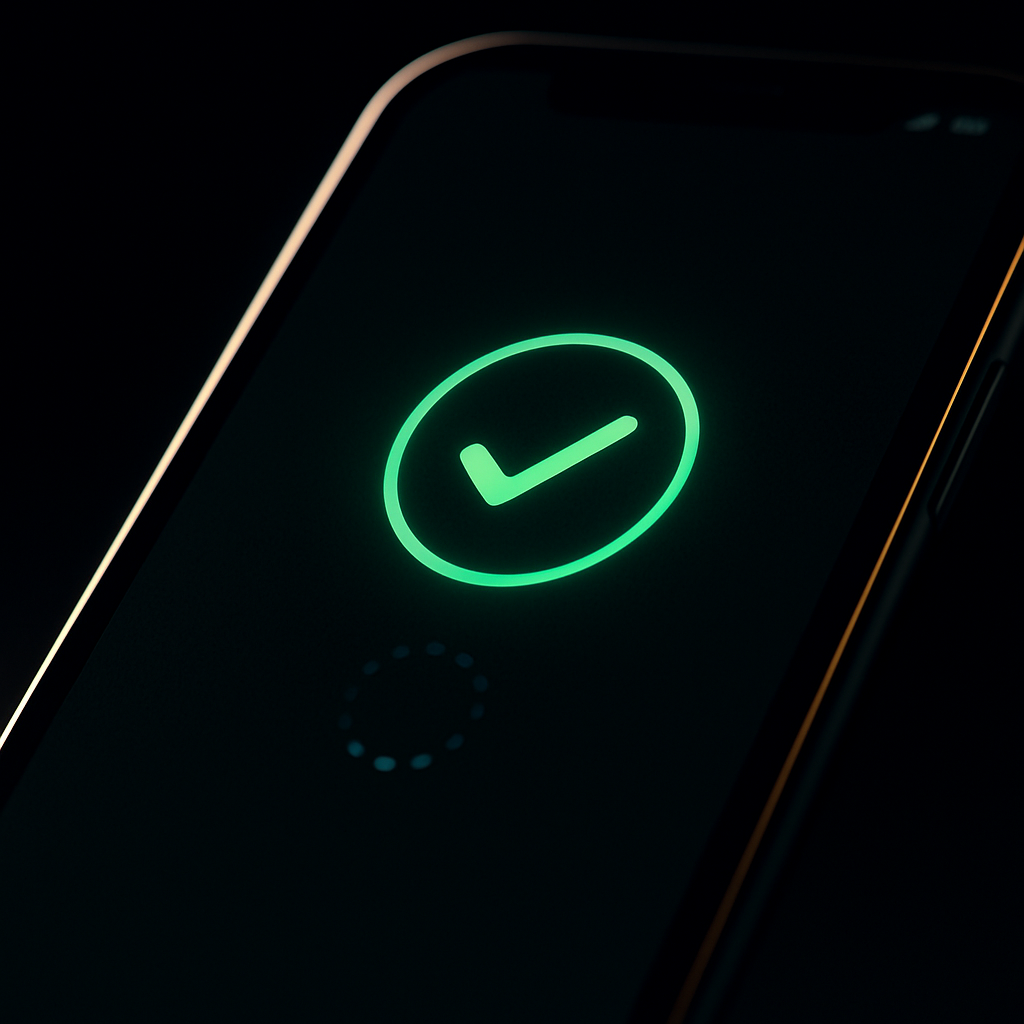
Loading states are where a lot of products go catastrophically wrong, mostly by having nothing happen at all. A blank screen or an unresponsive button during a two-second API call is enough to make users tap twice, assume it’s broken, or abandon altogether.
The research on perceived performance is genuinely fascinating. Studies consistently show that users rate a product as faster when there’s visible progress feedback, even if the actual load time is identical. Skeleton screens (the greyed-out placeholder layouts that appear before content loads) are particularly effective because they set spatial expectations and signal that content is on its way. Compared to a generic spinner, they’ve been shown to reduce perceived wait time noticeably.
For loading micro-interactions UX design, the key questions are: Is it proportionate? A 200ms action doesn’t need a progress bar; a file upload absolutely does. Is it interruptible? Users should be able to cancel long operations. And does it give accurate feedback? An indeterminate spinner is better than a fake progress bar that stalls at 99% for seven seconds. That specific crime against UX has haunted me since about 2009.
Feedback Loops That Actually Build Confidence
The best feedback loops operate at three levels: immediate, short-term, and completion. Immediate feedback is the button press response. Short-term is the inline form validation as you type. Completion is the success state after a transaction finalises.
Inline validation is worth dwelling on because teams chronically under-invest in it. Telling a user their password is too short after they’ve submitted the form is a UX failure. Telling them in real time, with a clear visual indicator as they type, removes friction and builds confidence simultaneously. A green tick appearing next to a valid email address is a small celebration. It’s the interface saying nice one without being annoying about it.
Success states are equally neglected. After a user completes a key action (a purchase, a sign-up, a file save), the interface has a brief window to reinforce that they did the right thing. Monzo does this brilliantly with their payment confirmations; the little animation and clear confirmation copy make spending money feel almost pleasant, which is no small feat. It’s not accidental. That’s deliberate micro-interaction design working at full effectiveness.
The Curious Overlap With Physical Craft
Here’s a slightly left-field observation. The philosophy behind micro-interactions maps surprisingly well onto the idea that precision and feedback in physical tools build trust in the person using them. A well-calibrated piece of woodworking machinery gives the craftsperson constant feedback through resistance, sound, and result, much like a well-designed interface gives users constant feedback through visual, tactile, and auditory cues. Both create confidence through predictable, proportionate response. It’s the same underlying principle: feedback is what separates a tool you trust from one you fear.
How to Implement Micro-Interactions Without Overengineering
The trap is over-animating everything. I’ve seen portfolios where every single element bounces, spins, or fades, and within thirty seconds the site feels like a fever dream. Micro-interactions should be in service of clarity, not applause for the designer’s technical skills.
Start with the high-stakes moments: form validation, loading states, error messages, and success confirmations. These are the places where the user is most uncertain and where feedback matters most. Once those are solid, look at primary CTAs and navigation. Then, and only then, consider the delightful extras like subtle parallax effects or playful empty states.
For implementation in CSS, the transition and animation properties cover most hover and feedback states elegantly. For more complex sequenced animations, tools like GSAP (GreenSock) give you precise timing control without wrestling the browser. For React-based projects, Framer Motion handles the physics-based interactions brilliantly and keeps your component logic clean. The right tool depends on the complexity of the interaction, not on which library is currently trending on dev Twitter.
The principle to carry through every decision: if removing the micro-interaction would make the interface harder to use or understand, it’s load-bearing and should stay. If removing it just makes it slightly less delightful, it’s ornamental. Both have their place. But know which is which before you ship.
Frequently Asked Questions
What are micro-interactions in UX design?
Micro-interactions are small, contained moments in a digital interface that respond to a user’s action, such as a button animation on click, inline form validation, or a loading spinner during a file upload. They communicate system status, confirm actions, and build user confidence through consistent, proportionate feedback.
Why do micro-interactions improve user trust?
They work by reducing uncertainty. When an interface immediately acknowledges every user action, it confirms that the product is working correctly and listening. This satisfies a deep psychological need for cause-and-effect confirmation, which lowers cognitive load and builds trust over repeated interactions.
How long should a hover state animation be?
The widely accepted sweet spot for hover state transitions is between 150 and 200 milliseconds. Slower than that feels sluggish; faster feels abrupt. For exit transitions (mouse leaving an element), slightly longer durations around 200 to 250ms tend to feel more natural.
What is the difference between a skeleton screen and a loading spinner?
A skeleton screen shows a greyed-out placeholder layout that mimics the structure of the content being loaded, setting spatial expectations and signalling progress visually. A loading spinner is a generic rotating indicator with no contextual information. Research consistently shows skeleton screens reduce perceived wait time more effectively than spinners.
Are micro-interactions bad for performance?
Not if implemented carefully. CSS transitions using transform and opacity properties are GPU-accelerated and have negligible performance cost. Problems arise when developers animate properties that trigger browser reflows (like width, height, or top/left). Stick to transform and opacity for smooth, performant micro-interactions on any device.